
Free Online Audio Volume Booster
Sometimes an audio recording is simply too quiet. A podcast may have low recording levels, a voice memo may be difficult to hear, or a music file may play noticeably softer than other tracks.
A volume booster increases the level of an audio file so you can get a louder result without having to re-record it.
SonicLab's Volume Booster supports MP3, WAV, FLAC, OGG, and AAC files up to 500 MB and can increase the volume by up to 300%. It also includes a built-in limiter designed to help prevent digital clipping when you apply substantial gain.
How to Make Audio Louder Online
You can boost an audio file in a few steps:
Upload or drop your audio file
Add an MP3, WAV, FLAC, OGG, or AAC file to the Volume Booster.
Adjust the volume
Use the gain control to increase the level. SonicLab currently supports boosting up to 300%; 150% is suggested as a reasonable starting point on the tool page.
Keep the limiter enabled
The limiter helps prevent the audio signal from exceeding the digital ceiling and reduces the risk of clipping and distortion.
Use Normalize when appropriate
If the recording is very quiet and you want its loudest peak brought toward a consistent maximum level, SonicLab's Normalize option can automatically adjust the level.
Preview and download
Listen to the processed result before downloading the louder audio.
The important part is not simply choosing the largest possible boost. The best setting is the one that makes the recording sufficiently loud while keeping the result clean.
Amplify MP3 Volume and Other Audio Files
A volume booster mp3 is useful for more than MP3 files. Different audio formats can contain the same basic concept of a digital audio signal, but their encoding and compression characteristics can differ.
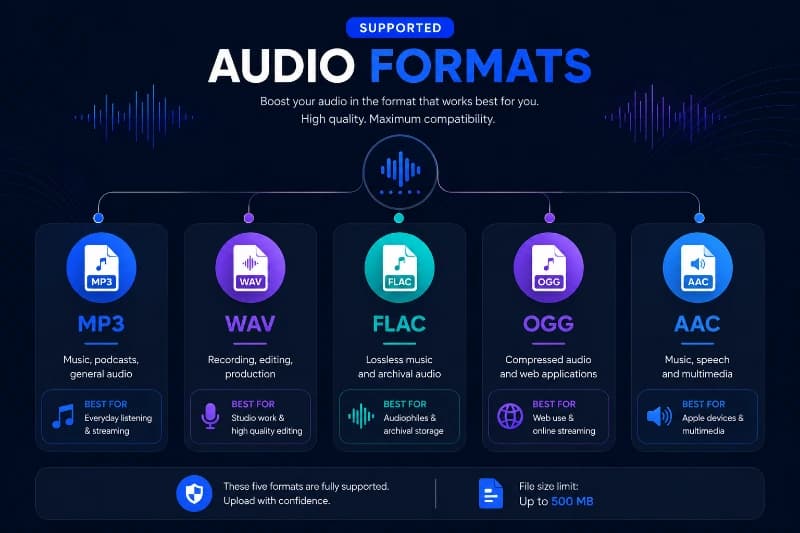
SonicLab's Volume Booster accepts:
| Audio format | Typical use |
|---|---|
| MP3 | Music, podcasts, general audio |
| WAV | Recording, editing, production |
| FLAC | Lossless music and archival audio |
| OGG | Compressed audio and web applications |
| AAC | Music, speech and multimedia |
SonicLab supports these five input formats, with files up to 500 MB.
MP3 Volume Booster
If an MP3 is too quiet, you can use the Volume Booster to increase its level without manually opening a desktop audio editor.
This is useful for:
- Quiet music files
- Podcasts
- Downloaded recordings
- Voice recordings
- Interviews
- Lectures
- Other MP3 audio that plays below your preferred listening level
Keep in mind that boosting an MP3 does not restore information that was already lost through compression. It increases the level of the existing audio.
How Increase Volume Booster Works
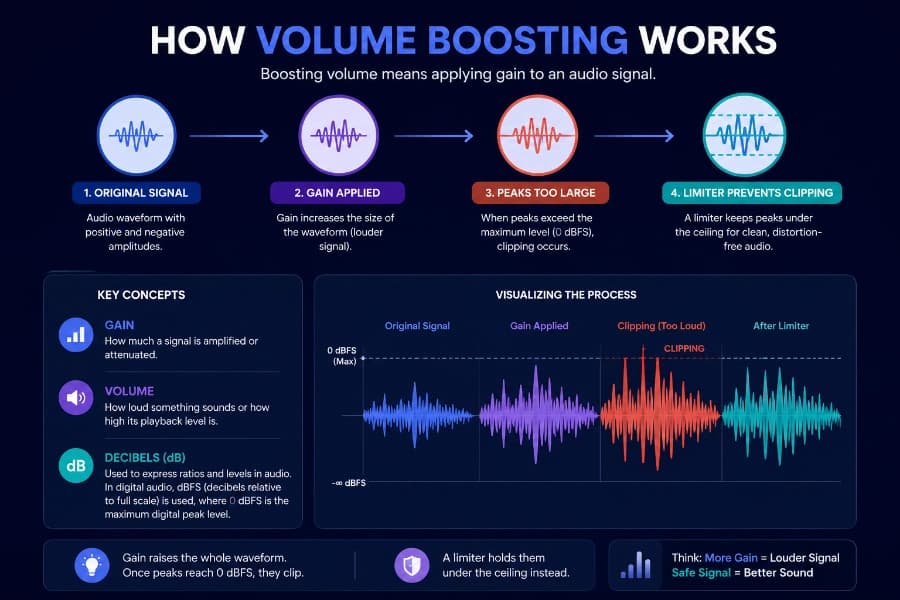
At its simplest, audio volume boosting means applying gain to an audio signal.
An audio waveform contains positive and negative amplitude values. Increasing gain makes those values larger. If the original signal has enough headroom, you can increase its level without immediately creating audible problems.
The difficulty appears when the peaks become too large.
Digital audio has a maximum representable level. If amplification pushes a signal beyond that ceiling, the waveform can be clipped. That's why simply turning every recording up as far as possible is not always the best approach.
Volume, Gain, and Decibels
0 dBFSGain describes how much a signal is amplified or attenuated.
Volume is commonly used to describe how loud something sounds or how high its playback level is.
Decibels (dB) are used to express ratios and levels in audio. In digital audio, dBFS—decibels relative to full scale—is commonly used to describe digital signal levels, where 0 dBFS represents the maximum digital peak level.
A percentage control such as 150% or 200% is therefore not the same thing as saying that the audio is “150% louder” in a perceptual sense. The relationship between signal level and perceived loudness is more complicated.
Peak Level and Clipping
Clipping occurs when an audio signal is pushed beyond the maximum level that the digital system can represent.
Instead of preserving the original waveform shape, the peaks are cut off.
That can produce:
- Harshness
- Crunchy or distorted peaks
- Audible artifacts
- Reduced clarity
- An unpleasant listening experience
This is one reason SonicLab includes a built-in limiter. The Volume Booster's limiter is designed to prevent the processed signal from exceeding 0 dBFS, helping reduce digital clipping and distortion during significant boosts.
Why Volume Boost Can Cause Distortion
Imagine an audio waveform whose loudest peak is already close to the digital ceiling. If you apply more gain, that peak has nowhere to go.
The result can be clipping.
A limiter handles this differently from simply allowing the signal to exceed the ceiling. It controls peaks so that they remain within the permitted range.
That does not mean unlimited boosting will always sound perfect. If the source is already heavily compressed, clipped, noisy, or otherwise damaged, increasing its level cannot restore the original quality.
How to Make Audio Louder Without Distortion
The goal of volume boosting should be more usable loudness, not simply the largest possible number.
Use the Right Amount of Boost
Start with a moderate increase and listen to the result. A quiet recording may need substantial amplification, while another file may already have peaks close to the maximum level. More gain is not automatically better.
Leave Room for Peaks
Headroom is the space between the current signal level and the maximum available level. A recording with sufficient headroom has more room for additional gain before its peaks reach the digital ceiling. A recording with almost no headroom has much less room for amplification.
Keep the Limiter On
SonicLab recommends keeping its limiter enabled when boosting significantly. The limiter is designed to prevent the signal from exceeding 0 dBFS and therefore helps protect against digital clipping.
Preview Before Downloading
Always listen to the processed result.
Pay particular attention to:
- Loud vocal peaks
- Drum hits
- Sibilant speech
- Sudden transients
- Music with strong bass
- Sections that were already loud
A file can have an acceptable average level while still containing peaks that create problems.
Volume Booster vs. Audio Normalizer
Boosting and normalization are related, but they are not exactly the same operation.
What Volume Boosting Does
Volume boosting applies additional gain to increase the level of the audio.
You control how much the signal is increased.
This is useful when you specifically want to make an audio file louder.
What Normalization Does
95%Normalization automatically adjusts the level according to a defined target.
SonicLab's current Normalize function automatically adjusts the audio so its loudest peak reaches 95% of the maximum level.
This can be useful when a recording is unusually quiet and you want its peak level brought closer to a consistent maximum.
Which Should You Use?
| Situation | Better starting point |
|---|---|
| You want manual control over how much louder the file becomes | Volume Boost |
| You want an automatic level adjustment | Normalize |
| You have a very quiet recording | Normalize or moderate Boost |
| You want to choose the exact amount of amplification | Boost |
| The source is already close to maximum level | Avoid aggressive boosting |
Normalization does not automatically make every recording perceptually equally loud. Peak normalization and perceived loudness are different concepts.
Peak Volume vs. Perceived Loudness
A common audio misconception is that the highest peak determines how loud a recording sounds. It doesn't.
Two recordings can have similar peak levels while one sounds noticeably louder than the other.
Peak Level and dBFS
dBFSPeak level tells you how high the strongest signal reaches relative to the digital full-scale limit.
For digital audio:
- 0 dBFS is the maximum representable digital peak.
- Values below 0 dBFS have remaining headroom.
- Attempting to push peaks beyond the digital ceiling can produce clipping.
Peak level is therefore useful for understanding how close a signal is to the digital limit.
LUFS and Perceived Loudness
LUFSLUFS, or Loudness Units relative to Full Scale, is a loudness measurement designed to better represent perceived program loudness than peak level alone.
This distinction matters because our ears do not perceive every frequency or waveform equally.
A heavily dynamic recording may have high peaks but a relatively low average loudness. Another recording may have less dramatic peaks but sound consistently louder.
Why Two Files With the Same Peak Can Sound Different
Perceived loudness can be affected by factors including:
- Average signal level
- Dynamic range
- Frequency content
- Compression
- Arrangement
- Duration of loud and quiet sections
- Human hearing perception
So if a file has already reached a high peak level, adding more gain may primarily create clipping rather than making it meaningfully better.
Why Does My Audio Sound Too Quiet?
There are several possible reasons an audio file may seem quieter than expected.
Low Recording Level
The original recording may simply have been captured at a low level. This is common with voice memos, interviews, meetings, lectures, and portable recordings. A volume booster can increase the level of the existing recording.
Large Dynamic Range
Some recordings contain very loud peaks and relatively quiet sections. The peak may already be high enough that simply adding more gain is difficult without clipping.
Low Perceived Loudness
A recording can have reasonable peaks while still sounding quiet compared with another recording. This is where peak level and perceived loudness need to be distinguished.
The Audio Is Already Very Loud
If the waveform is already close to 0 dBFS, aggressive amplification is not the solution. You may need a different processing approach, such as loudness normalization or dynamic processing, depending on the desired result.
What Can You Use a Volume Booster For?
A volume booster is useful whenever an existing audio file is too quiet for its intended use.
Music and MP3 Files
Increase the level of quieter music files for more consistent playback.
Voice Recordings
Make speech recordings easier to hear when the original recording level was low.
Podcasts
Boost quiet spoken recordings before publishing or sharing them.
SonicLab's homepage specifically identifies volume boosting and loudness normalization as useful for content creators working with YouTube, TikTok, Instagram Reels, and podcasts.
Phone and Portable Recordings
A voice memo or recording captured on a phone can sometimes have a lower recording level than expected. If the resulting file is quiet, you can amplify the file after recording.
Lectures and Interviews
Quiet speech recordings can be amplified without needing to recreate the original recording.
Will Boosting Reduce Audio Quality?
Boosting does not inherently reduce the quality of an audio file, but aggressive amplification can expose or create problems.
If the original audio has sufficient headroom, moderate gain can produce a clean louder result.
Problems are more likely when:
- The original peaks are already very high
- The signal clips
- The recording contains substantial background noise
- The source has already been heavily compressed
- The original audio is already distorted
The Source File Still Matters
A volume booster cannot recover detail that was never present in the source.
For example, if an MP3 already contains compression artifacts or a recording contains background noise, increasing its volume increases those existing elements along with the desired audio.
The best result therefore starts with the best available source file.
Volume Boosting on Mobile and Desktop
SonicLab is designed to work directly in a modern web browser, so you don't need to install a desktop audio editor just to increase the volume of a file.
SonicLab states that its tools work on smartphones, tablets, laptops, and desktops, with a responsive interface designed for touch screens.
That makes browser-based volume boosting useful when you need a quick adjustment without installing software.
Use the Volume Booster in Your Browser
You can open the Volume Booster, add your audio file, adjust the level, preview the result, and download the processed audio.
No separate audio-editing application is required.
Privacy and Browser-Based Audio Processing
Audio files can contain private conversations, original music, interviews, recordings, or other sensitive material. Where a tool processes those files matters.
- Your Device
- Browser / Web Audio
- Processed Result
SonicLab processes audio directly in your browser using the Web Audio API. According to SonicLab, files are not uploaded to its servers and remain on the user's device during processing.
That means the Volume Booster does not require you to send your audio file to a remote processing queue before you can use it.
Is My Audio Uploaded?
No. SonicLab's stated architecture processes the audio locally in your browser rather than uploading it to a server.
Why Local Processing Matters
Browser-based processing can provide several practical advantages:
- Your audio does not need to be sent to a remote server for processing.
- There is no server upload step to wait for.
- You can work with recordings directly on your device.
- Sensitive audio can remain on the device during processing.
Frequently Asked Questions
Upload your audio to SonicLab's Volume Booster, adjust the gain to increase the level, keep the limiter enabled, preview the result, and download the processed file. SonicLab supports MP3, WAV, FLAC, OGG, and AAC files up to 500 MB.
Upload the MP3 to the Volume Booster and increase its gain. Start with a moderate boost, keep the limiter enabled, preview the result, and increase the level further only if the audio still needs more volume.
SonicLab's Volume Booster supports up to 300% of the original volume setting. The appropriate amount depends on the source recording, its existing peak level, and how loud you need the final result to be.
It can if amplification pushes the signal beyond the digital ceiling. SonicLab includes a built-in limiter designed to prevent the signal from exceeding 0 dBFS and reduce clipping and distortion during boosting.
Boosting gives you control over how much gain to apply. Normalization automatically adjusts the audio toward a specified level. SonicLab's Normalize function currently adjusts the loudest peak to 95% of maximum.
dBFS means decibels relative to full scale. It is used for digital audio levels, where 0 dBFS represents the maximum digital level. Pushing a signal beyond that ceiling can cause clipping.
LUFS is a loudness measurement designed to represent perceived program loudness more effectively than peak level alone. It is useful when comparing the overall loudness of audio rather than simply looking at its highest peak.
The Volume Booster accepts MP3, WAV, FLAC, OGG, and AAC files up to 500 MB.
Yes. If the recording exists as a supported audio file, you can upload it and increase its level. If the source contains substantial background noise, however, boosting the volume will increase that noise as well.
You can, but aggressive amplification may cause clipping if the existing peaks are already close to the digital ceiling. In that situation, a small adjustment or normalization may be more appropriate than applying the maximum boost.
Yes. SonicLab states that its browser-based audio tools work on smartphones and tablets as well as laptops and desktops.
No. SonicLab's Volume Booster runs in the browser, so there is no separate audio-editing application to install.
Yes. SonicLab states that its audio tools are free to use without signup or a credit card.