How to Make Headphones Louder
If your headphones, earbuds, or phone audio sound quieter than you expect, there are several things to check before assuming your hardware is at fault. A low volume problem can come from system settings, an application's own volume level, a phone's built-in volume limit, Bluetooth pairing, or the audio source itself.
The best approach is to identify the cause first. Simple settings changes can restore lost volume, and a volume booster can add extra digital gain once your normal controls are already at their maximum.
This guide explains how to make headphones louder on phones, laptops, Windows PCs, Macs, and Bluetooth headphones, and how to boost browser audio when the problem is limited to a website or streaming tab. If it's your speakers rather than headphones that sound quiet, see how to make speakers louder instead.
Quick Answer: How to Make Headphones Louder
Start by checking the device volume, the application's own volume slider, and any phone-level volume limit. On iPhone, check the Volume Limit setting under Sounds & Haptics. On Android, check media volume separately from ringtone and notification volume. On Windows and Mac, check the app's volume and the system output level.
If normal controls are already at their practical maximum, a volume booster extension can add digital gain to compatible browser audio. EQ can also increase perceived loudness, but pushing gain too far causes clipping and distortion.
Why Do My Headphones Sound Quiet?
| Cause | What can happen | What to check |
|---|---|---|
| Low system volume | Overall output is reduced | Device volume |
| App or browser tab volume | One source is quieter than the rest | Volume mixer or app controls |
| Phone volume limit | Maximum output is capped by the OS | iOS Volume Limit, Android sound settings |
| Poor ear-tip or headphone fit | Bass and perceived loudness drop sharply | Seal, tip size, headphone position |
| Audio enhancements | Processing can raise or lower perceived level | EQ and enhancement settings |
| Bluetooth connection | Output may use the wrong device or codec | Connected audio device |
| Low source recording level | The file itself was mastered quietly | Source audio, streaming service |
| Hardware limitation | Headphone driver reaches its output limit | Headphone specs and impedance |
How to Make Headphones Louder
1. Check Device and Application Volume Separately
Check the main system volume first, then check the volume of the specific app, browser tab, or media player. Many systems keep these levels independent, so raising only one may not fix the problem.
On Windows, open Settings → System → Sound → Volume Mixer to see whether an individual app is set lower than the rest. On Mac, check both the system volume and the app's own player controls. On Android, remember that media, call, ringtone, and notification volumes are controlled separately.
2. Check for a Phone Volume Limit
Phones often include a maximum output limit for hearing protection, which can silently cap your headphone volume even when the on-screen slider looks maxed out.
On iPhone, check:
Settings → Sounds & Haptics → Headphone Safety → Reduce Loud Sounds
If this is enabled, it caps the maximum headphone output regardless of your volume buttons.
Android devices vary by manufacturer, so look for a similarly named hearing-safety or volume-limit setting in your phone's sound settings.
3. Check Fit and Placement
For in-ear headphones and earbuds, a poor seal is one of the most common causes of weak bass and low perceived volume. Try a different ear-tip size, and reseat the earbud until the seal feels secure.
For over-ear headphones, make sure nothing is holding the earcups away from your ears, such as glasses arms or hair caught under the cushion.
4. Check Audio Enhancements and EQ
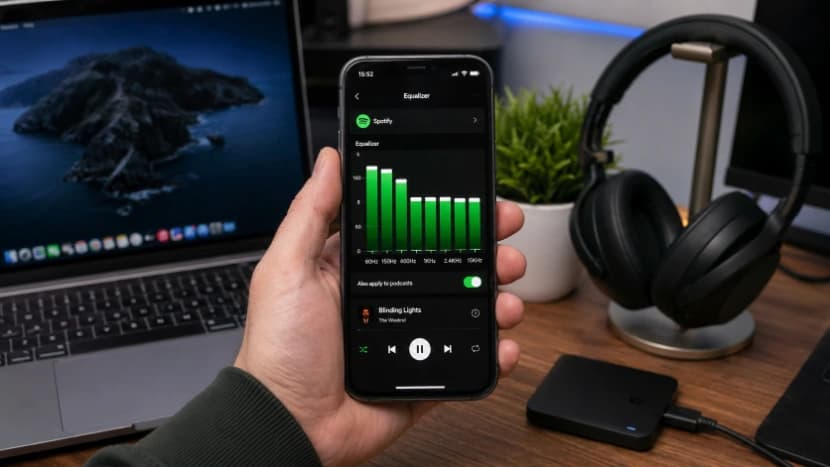
Equalization does not create unlimited driver output, but boosting the right frequencies can make audio sound noticeably louder and clearer without simply raising the overall gain.
Compare a flat EQ against a moderate boost and an enhanced profile, and keep whichever setting sounds loudest without becoming harsh or distorted. Reducing excessive bass can also free up headroom for vocals on smaller drivers. You can test EQ curves on a file directly in your browser with the SonicLab Audio Equalizer before applying similar settings on your device.
How to Make Headphones Louder on iPhone and Android
iPhone
- Open Settings → Sounds & Haptics.
- Adjust the ringer and alerts slider — this does not control media volume.
- Use the physical volume buttons or Control Center while media is playing to set the actual playback level.
- Check Headphone Safety → Reduce Loud Sounds and turn it off or raise the limit if it is capping your output.
Android
- Press a volume button and open the on-screen volume controls.
- Confirm Media volume is turned up — it is separate from ringtone, alarm, and notification volume.
- Check your phone manufacturer's sound settings for a hearing-safety or volume-limit feature.
- Check for a built-in equalizer or "Bass boost" toggle in your phone's sound settings or headphone app.
How to Make Headphones Louder on Windows and Mac
On Windows, open Settings → System → Sound → Volume Mixer and confirm both the system output and the specific app are turned up. If the sound is unexpectedly quiet, test with audio enhancements disabled, since they can sometimes reduce clarity rather than improve it.
On Mac, check the system volume, the app's own volume control, and whether Bluetooth or an external audio interface is set as the active output device. If you use third-party audio software, check whether it has its own gain, limiter, or EQ that could be turned down.
How to Make Bluetooth Headphones Louder
Bluetooth headphones have their own amplifier, drivers, and digital signal processing, so software cannot remove every physical limit. Try these steps in order:
- Turn up the headphones' own volume control, if they have one.
- Turn up the connected phone or computer's volume.
- Confirm the correct Bluetooth device is actually connected — audio can silently route to a different paired device.
- Check whether the headphones have their own companion app with an EQ or sound profile.
- Charge the headphones, since output can drop noticeably at low battery on some models.
Use a Volume Booster Extension for Browser Audio
If the problem is limited to a website, video, or browser tab, a volume booster extension is a practical fix without touching every system setting.
SonicLab provides browser-based audio tools designed to give you more control over playback. Depending on the extension, you can increase the level of compatible browser audio, adjust bass, and get more control directly from the browser toolbar.
A typical workflow:
- Install the SonicLab Volume Booster Extension for your browser.
- Open the website or player where audio sounds too quiet.
- Start playback.
- Open the extension and enable boosting.
- Increase the level gradually and stop once the audio sounds clean.
This is useful for quiet YouTube videos, low-level web audio, browser-based music players, and streaming sites where the built-in volume control tops out too early — including Spotify Web Player, which has its own volume quirks worth knowing about. If your main goal is deeper bass rather than more overall volume, try the SonicLab Bass Booster instead.
How Loud Is Too Loud?
Increasing headphone volume is useful, but louder is not automatically safer or better. Sound exposure depends on both volume and listening duration.
The World Health Organization recommends a reference level of 80 dB for up to 40 hours per week for adults. At 90 dB, the recommended weekly listening time falls to about 4 hours.
| Average sound level | WHO example weekly listening time |
|---|---|
| 80 dB | 40 hours |
| 85 dB | 12 hours 30 minutes |
| 90 dB | 4 hours |
| 95 dB | 1 hour 15 minutes |
| 100 dB | 20 minutes |
The exact level reaching your ears depends on your headphones, fit, audio content, and listening environment. WHO also recommends keeping personal audio device volume below about 60 percent of maximum where possible and taking regular breaks from loud sound.
Frequently Asked Questions
How can I make my headphones louder?
Check your device, application, and browser volume first, and confirm your phone does not have a headphone volume limit enabled. If everything is already at its normal maximum, a compatible volume booster extension can amplify browser audio further.
Why do my headphones sound quiet even at max volume?
This is often caused by a phone-level volume limit, a poor ear-tip seal, a quietly mastered source recording, or the wrong Bluetooth device being connected. Check each of these before assuming the headphones themselves are faulty.
Is there a volume booster for Chrome?
Yes. SonicLab provides browser-based volume-boosting tools and extensions designed to increase compatible browser audio.
Can a volume booster increase bass too?
Yes. Depending on the extension, audio enhancement can include bass adjustment alongside volume amplification.
Is it safe to increase headphone volume?
High volume combined with prolonged listening increases the risk of hearing damage. Follow WHO's recommended exposure levels above and take regular breaks, especially at higher volumes.
Final Takeaway
Making headphones louder rarely means simply maxing out one slider. Check your device volume, app volume, and any phone-level volume limit first, and confirm your headphones have a good fit. For browser audio specifically, SonicLab's Volume Booster Extension can provide additional amplification once your normal controls are already maxed out.
The goal is more usable volume with clear audio and minimal distortion — not maximum volume at any cost.
Related guides
- How to Make Speakers Louder — The same troubleshooting approach for phone, laptop, and Bluetooth speakers
- Spotify Volume Booster — Boost Spotify playback specifically
- Audio Equalizer — Shape bass, mids, and treble with a free 10-band EQ