
Chrome
Manual install (ZIP)
Chrome 88 and later on Windows, macOS, Linux and ChromeOS. The volume booster Chrome extension installs in seconds through developer mode.
Download Chrome ZIPfrom GitHubOfficial SonicLab extension · Free · No signup
Make quiet browser audio louder with the SonicLab Volume Booster Extension. Boost playback directly in your browser when a video, webpage, lecture, music player, or other supported browser audio source is too quiet. When the official SonicLab listing is available in your browser's extension store, search for SonicLab Volume Booster and install it there. Your audio is never uploaded, and the extension works entirely within your browser.
Prefer the official browser store when available. ZIP downloads are provided for manual installation, and are the only route while store listings are in review.
There are two ways to get the SonicLab Volume Booster Extension. Pick your browser below. Where an official store listing exists, install from there — the store handles updates for you and verifies the package. Listings on the Chrome Web Store, Microsoft Edge Add-ons, Opera Add-ons and Firefox Add-ons are not published yet, so for now every browser installs from a ZIP hosted on GitHub. This page is updated the moment a listing goes live.
Manual install (ZIP)
Chrome 88 and later on Windows, macOS, Linux and ChromeOS. The volume booster Chrome extension installs in seconds through developer mode.
Download Chrome ZIPfrom GitHubManual install (ZIP)
Edge is built on Chromium, so the extension runs unchanged. Install from the Microsoft Edge Add-ons store or via ZIP.
Download Microsoft Edge ZIPfrom GitHubManual install (ZIP)
Opera is Chromium-based and installs the package the same way as Chrome.
Download Opera ZIPfrom GitHubManual install (ZIP)
Firefox 109 and later. A separate build with Gecko's manifest keys.
Download Firefox ZIPfrom GitHubManual install (ZIP)
Safari on macOS. The package is built for Safari's extension format and is downloaded the same way as the other browsers.
Download Safari ZIPfrom GitHubEvery build is published in the extension's own GitHub repository, where the full source is readable alongside the packages. Each browser gets its own ZIP: the code inside is identical, and only the manifest differs to satisfy each store's requirements.
A ZIP is a download, not an install — after saving it you unzip the file and load the folder through your browser's developer mode. The steps are below. Only install extension packages obtained from a trusted SonicLab source.
All releases and the complete source: github.com/kaleemullah6698/soniclab-extensions
Downloaded browser extensions are not installed identically across every browser. For Chromium-based browsers such as Chrome and Microsoft Edge, a downloaded extension package needs to be loaded through the browser's extension management or developer-extension interface. Manual installation takes about a minute — once the extension is in your browser's official store, install it from there instead so you keep automatic updates.
A webpage can contain audio that is mixed unusually quietly, and a media player may already be at its maximum volume. The SonicLab Volume Booster Extension provides another layer of playback control so supported browser audio can be amplified beyond the normal level available through the website or standard browser controls.
The extension works at the playback stage rather than permanently editing the source media. Conceptually, additional gain is applied to supported audio as it passes through the browser's audio pipeline. This makes the volume booster extension useful when you do not have access to the original media file, you only need louder playback, or the website's normal volume control is insufficient.
Extra amplification does not restore missing audio detail. If the original recording is already clipped, distorted, or noisy, increasing its level can make those problems more noticeable. For the best result, increase the boost gradually and use the lowest level that provides comfortable listening.
SonicLab Volume Booster gives you two ways to boost sound: amplify the audio from your current browser tab, or boost a local audio file.
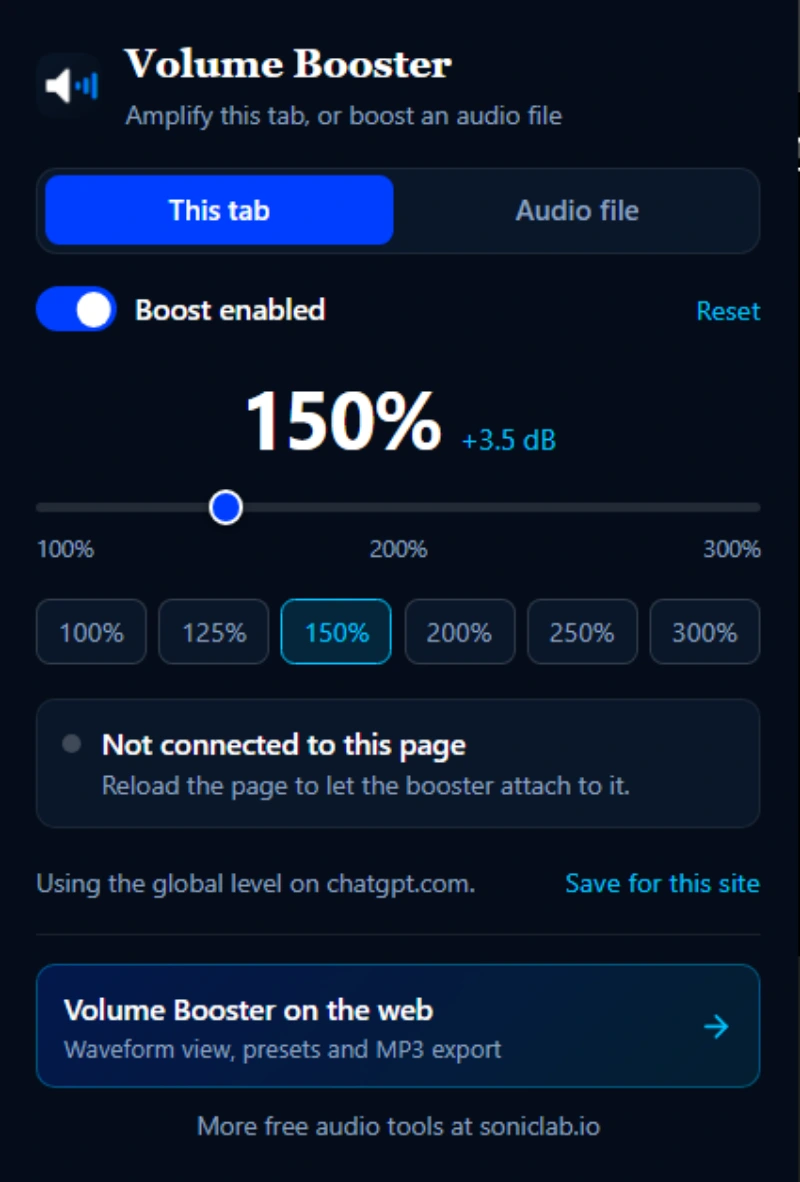
The This tab mode lets you amplify audio from the browser tab you are currently using. It is useful when a YouTube video, podcast, music stream, online lecture, or other website is playing quieter than you want.
The extension attaches to the current page when supported. If it shows “Not connected to this page,” reload the page and try again. Simply enable the boost and adjust the volume level.
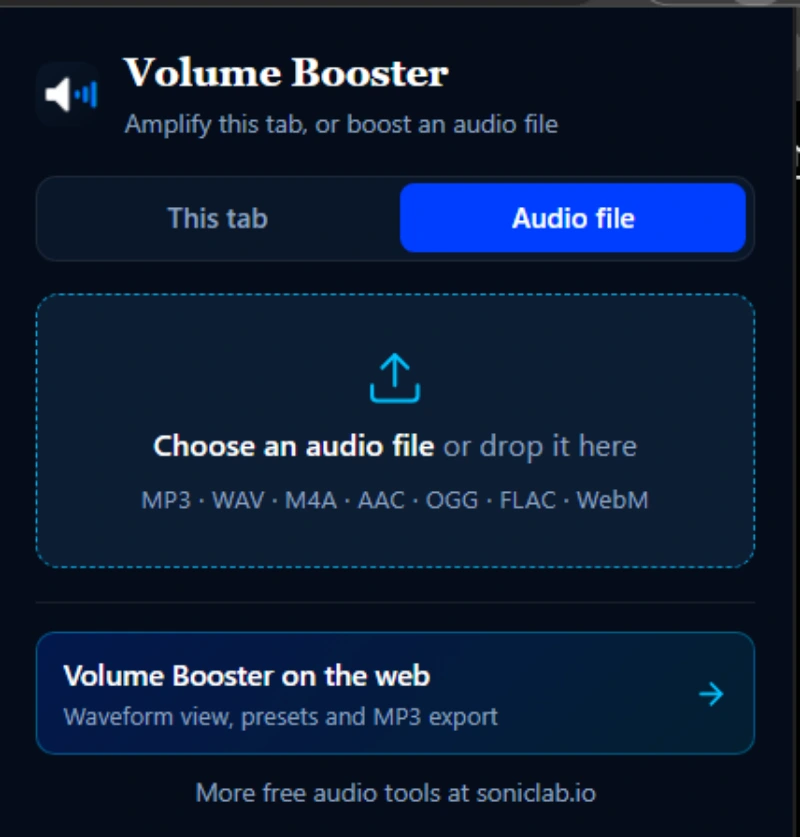
The Audio file mode lets you select an audio file directly from your device and apply volume amplification to it. Choose a file or drag and drop it into the extension.
This mode is useful when you have a recording, podcast episode, music track, or any other audio file that is too quiet and you want to hear it at a higher level without using a separate audio editor.
Simple, focused controls in one place — choose the audio source, enable boosting, adjust the amplification level, and select a preset when needed.
The 'This tab' mode amplifies audio from the browser tab you are using — useful when a YouTube video, podcast, online lecture, music stream, or any other website is playing quieter than you want.
Choose a file or drag and drop it into the extension. The 'Audio file' mode supports MP3, WAV, M4A, AAC, OGG, FLAC and WebM directly from your device — nothing is uploaded anywhere.
Fine-tune amplification with a continuous slider. The interface shows the approximate gain in decibels so you always know how much boost is being applied.
Jump straight to 100%, 125%, 150%, 200%, 250% or 300% with one tap, rather than manually dragging the slider every time.
Switch amplification on or off instantly to compare the original volume with the boosted output. Save your preferred level for a specific website so it is applied automatically the next time you visit.
Return all settings to their default state with a single tap instead of manually adjusting each control back.
Adjust volume from 100% to 300% with a continuous slider or use quick presets. The interface displays the approximate gain in decibels so you always know how much amplification is being applied.
| Setting | Available Option |
|---|---|
| Minimum level | 100% |
| Maximum level | 300% |
| Quick presets | 100% · 125% · 150% · 200% · 250% · 300% |
| Current tab mode | Yes |
| Local audio file mode | Yes |
| Site-specific settings | Yes |
| Boost toggle | Yes |
| Reset control | Yes |
| Drag & drop audio | Yes |
If YouTube videos are too quiet in your browser, a YouTube volume booster extension can provide additional playback-level control. The SonicLab extension is particularly useful for:
The SonicLab extension changes the playback level you hear in the browser. It does not edit or permanently replace the original YouTube media. If the source video itself contains distortion, increasing its volume cannot repair the underlying recording.

Increasing volume does not create additional audio information. If the original signal is already close to its maximum digital level, aggressive amplification can result in clipping or make existing distortion more noticeable.
If playback becomes harsh, crackly, or distorted after increasing the volume:
More volume is not always better. The goal is a comfortable and intelligible listening level.
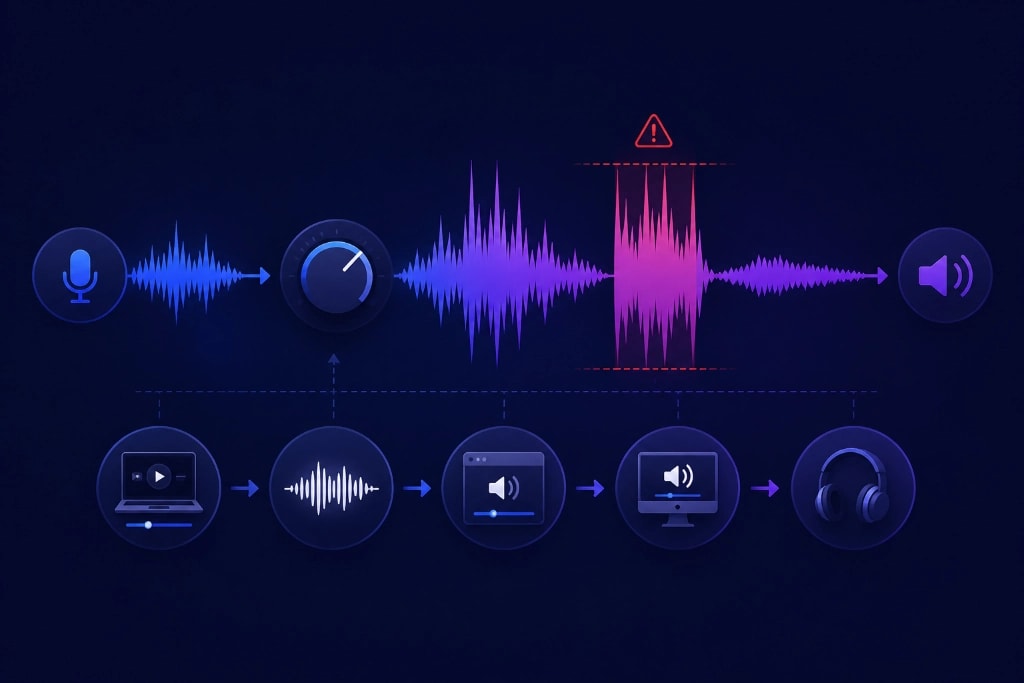
A browser volume booster can be useful on a Windows PC, laptop, or other desktop computer when the volume problem is specifically related to browser playback. This can be more convenient than installing a traditional desktop audio application when you only need additional volume for content playing inside your browser.
However, a browser extension is not automatically a system-wide Windows volume booster. If every application on your computer is too quiet, check:
Use a browser extension when the problem is browser playback. Use system-level audio controls when the entire computer is affected.
Local audio processing is not a marketing line here — it is the reason the extension can ask for as little as possible.
In Audio file mode the file is decoded by your browser's own audio engine inside the extension popup. It is never uploaded, never sent to a server, and never stored by the extension.
No analytics, no tracking, no accounts, and no network requests of any kind beyond what is needed to attach to the current tab. The audio you open is released from memory as soon as you close the popup.
The extension requests only the permissions required to access audio from the current tab. It cannot see your browsing history, your other tabs, or the content of pages you visit.
You can read the full privacy policy for the extension or the complete source, which ships unminified inside every package.
Your browser's own audio decoder handles the file. In Chrome and Edge this covers all of these:
File size limited by your browser's memory
Format support is the browser's decision rather than the extension's, so it can vary slightly between browsers — Firefox, for instance, always handles MP3, WAV, FLAC and OGG, while M4A and AAC there depend on the codecs installed on your system. If a file is unsupported, the extension says so clearly instead of failing silently.
Make sure media is currently playing, the correct browser tab is being used, and the audio source is supported. Check that the extension has the required permissions and the browser has not blocked the extension from accessing the relevant page.
Reduce the boost. Excessive amplification can expose clipping or distortion already present in the original recording.
Check the browser-specific installation method, the extension package format, developer-extension restrictions, signing requirements, and the installation instructions supplied with the SonicLab release. Different browsers can impose different extension requirements.
Check the official SonicLab page to see whether the extension has already been published for your browser. A Chrome listing does not necessarily mean that the Firefox, Edge, or Safari version is already available.
If audio from multiple applications is quiet, the problem may not be related to browser playback. Check your operating-system volume, application volume, output device, speakers, headphones, and hardware controls.
The two products solve different problems and should complement each other rather than compete for the same intent.
| Use Case | Volume Booster Extension | Online Volume Booster |
|---|---|---|
| Primary use | Amplify audio playing inside the browser | Process and create a louder version of an audio file |
| Webpage or video too quiet | Best fit | Not the primary use |
| Need a louder MP3/audio file | Not the primary use | Best fit |
| Want louder playback without editing a file | Best fit | Not the primary use |
| Need a processed audio file to download | Not the primary use | Best fit |
| Export format | No file export (tab mode); Audio file mode plays boosted audio | WAV and MP3 |
| Audio processing | Browser-level playback gain | Local, in your browser |
| Installation required | Yes — browser extension | No — runs on the SonicLab website |
Choose the volume booster extension if audio playing inside your browser is too quiet — it works once installed and needs no tab navigation to operate. If you have an MP3, WAV, or another supported audio file that needs to be permanently made louder, use the SonicLab online Volume Booster instead — it runs in the same browser with nothing to set up and supports WAV and MP3 export.
A volume booster extension is a browser add-on that provides additional control over supported audio playback when normal browser or website volume controls are not sufficient. It is primarily designed for playback rather than permanently editing the original audio file.
Install the official SonicLab listing from your browser's extension store when it is available. If the official store listing is not available, download the official SonicLab extension package and follow the browser-specific installation instructions supplied for that release.
Yes. SonicLab's Volume Booster Extension is designed for browser playback and can be distributed through the Chrome Web Store when the official Chrome listing is live. Users can install the store version when available or use the supported direct-download installation method provided by SonicLab.
Install the SonicLab Volume Booster Extension, play the YouTube video, and increase the extension's playback boost gradually. If the original video is distorted or clipped, increasing the volume will not repair the underlying audio problem.
Yes, a supported browser volume booster can be used on Windows when the problem is browser playback. However, it is not automatically a system-wide Windows audio booster. If all applications are quiet, check the computer's system and hardware audio settings.
Yes, when SonicLab provides an official downloadable package for the relevant browser. Whenever the official browser-store version is available, installing it from the official store should generally be the preferred option.
No. A browser playback extension is designed to change the playback level you hear rather than permanently edit the original media file. If you need to create a louder version of an MP3 or another supported audio file, use the SonicLab online Volume Booster tool instead.
Use the Volume Booster Extension when audio playing inside your browser is too quiet. Use the SonicLab Volume Booster when you have an audio file and want to process it and create a louder version. In simple terms: browser playback → Volume Booster Extension; audio file processing → SonicLab Volume Booster.
First determine whether only browser audio is quiet or whether the entire computer is affected. If the problem is browser audio, the SonicLab Volume Booster Extension can provide additional playback gain. If all applications are quiet, check your computer's operating-system volume, application volume, output device, speakers, headphones, and other audio settings.
For browser audio, a browser volume booster can provide additional playback gain. For system-wide audio, check the PC's operating-system controls, application volume, output device, and connected audio hardware.
Start by identifying where the volume problem occurs. If only browser content is quiet, use the SonicLab Volume Booster Extension. If audio from every application is quiet, investigate your system volume, application settings, output device, speakers, headphones, and hardware configuration.
SonicLab is a collection of free browser-based audio tools that process your files on your own device — no uploads, no accounts, no signup.