How to Make Speakers Louder
If your speakers sound too quiet, there are several ways to increase speaker volume without immediately replacing your hardware. A low volume problem can come from system settings, an application volume level, audio enhancements, blocked speaker grilles, poor placement, Bluetooth settings, or limitations in the speaker itself.
The best approach is to identify the cause first. Simple changes can restore lost volume, while a speaker booster or audio enhancement tool can provide additional digital gain when the hardware still has usable headroom.
This guide explains how to make speakers louder on phones, laptops, Windows PCs, Macs, Bluetooth speakers, external speakers, and browser based audio while keeping sound quality and distortion under control.
Quick Answer: How to Make Speakers Louder
To make speakers louder, start by checking the device volume, application volume, speaker connection, and audio output settings. Clean a blocked speaker grille, remove anything covering the speaker, and place the speaker on a suitable hard surface. On Windows, check the Volume Mixer and audio enhancements. On phones, check media volume, sound settings, and any volume limits.
If normal settings are already at their practical maximum, a volume booster can apply additional digital gain. EQ and compression can also increase perceived loudness, but excessive gain can cause clipping and distortion.
Why Are My Speakers So Quiet?
A speaker can sound quieter than expected for several reasons.
| Cause | What can happen | What to check |
|---|---|---|
| Low system volume | Overall output is reduced | Device volume |
| App volume | One application is quieter | Volume Mixer or app controls |
| Blocked grille | Sound output can be reduced | Dust, lint, case or obstruction |
| Audio enhancements | Processing can change loudness or clarity | EQ and enhancement settings |
| Poor placement | Sound may be absorbed or redirected | Surface and speaker orientation |
| Bluetooth connection | Output may use the wrong device or profile | Connected audio device |
| Driver or software issue | Audio may become unusually quiet | Drivers and system updates |
| Hardware limitation | Speaker reaches its physical output limit | Speaker size and amplifier |
Microsoft specifically recommends checking the Volume Mixer, selected output device, audio enhancements, audio format, and audio drivers when Windows audio is unusually quiet.
How to Make Your Speakers Louder
Before installing a speaker booster, work through the basic fixes below.
1. Turn Up Both Device and App Volume
Check the main volume control first, then check the application playing the audio.
For example, a Windows computer can have separate levels for system audio and individual applications. A video on YouTube, a music player, or a game can also have its own volume control.
On Android, the volume controls can separately manage media, calls, ringtone, notifications, and alarms.
On Windows:
- Open Settings.
- Select System.
- Open Sound.
- Open Volume Mixer.
- Check the system and affected application volumes.
- Make sure the correct output device is selected.
This simple check can solve many cases where the speaker itself is not actually weak.
2. Check the Speaker and Its Surroundings
A speaker grille covered by dust, lint, a phone case, or another obstruction can affect perceived loudness and clarity.
Inspect the speaker opening carefully. If it is visibly dirty, use a soft, dry brush and clean the exterior gently. Do not push sharp objects into the grille or pour liquid directly onto it.
Placement also matters. A laptop or phone speaker pointing into a soft surface such as bedding or thick fabric can sound less clear than the same speaker positioned with its output unobstructed.
For external and Bluetooth speakers, experiment with orientation and placement near a suitable hard surface.
3. Check Audio Enhancements and EQ
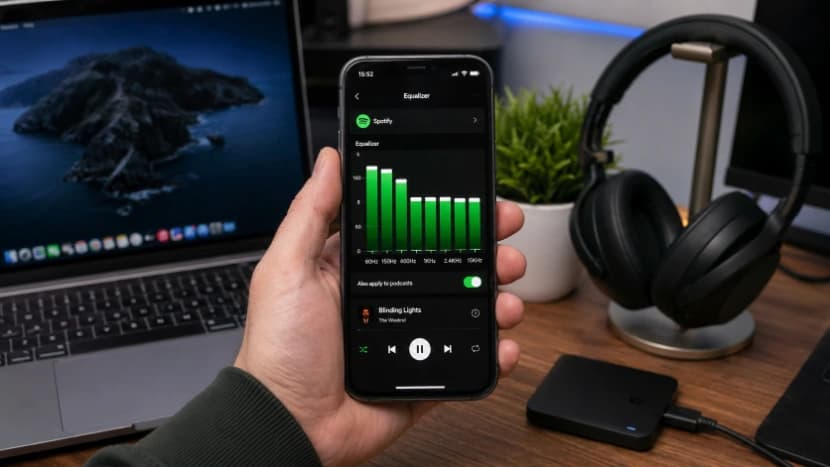
Equalization does not create unlimited physical speaker power, but it can change the balance of frequencies and make audio sound louder or clearer.
For example, excessive bass can consume significant headroom on small speakers. Reducing frequencies that the speaker struggles to reproduce can sometimes provide more usable headroom for vocals and other important sounds.
Windows also provides audio enhancement controls. Microsoft notes that enhancements can sometimes cause low or distorted sound and recommends turning them off when troubleshooting audio problems.
A useful approach is to compare:
Flat EQ → moderate EQ → enhanced profile
Keep the setting that provides the best combination of loudness, clarity, and low distortion.
How to Make Phone Speakers Louder
If your specific problem is a phone speaker that sounds quiet, check the phone before using an external booster.
Check Media Volume
On Android, press a volume button and open the volume controls. Make sure Media volume is high enough for music, videos, games, and other media. Android separates media, call, ringtone, notification, and alarm volume.
On iPhone, use the volume controls or Control Center to adjust playback volume. Apple also provides a built in Volume Limit setting for the iPhone speaker on supported versions of iOS.
Check for a Speaker Limit
If your phone has a maximum speaker volume limit enabled, it can prevent the speaker from reaching its configured maximum.
On supported iPhones, Apple provides:
Settings → Sounds & Haptics → Volume Limit
Apple also provides separate headphone safety controls that can reduce headphone output.
Android devices vary by manufacturer, so the exact names of sound and hearing protection settings can differ.
Clean the Phone Speaker
If the phone suddenly became quieter, inspect the speaker grille.
Dust, lint, moisture, and debris can interfere with the speaker opening. Remove the case and gently clean the exterior using an appropriate soft brush.
If the phone has been exposed to water, do not insert objects into the speaker opening or attempt aggressive cleaning. Follow the manufacturer's drying and water exposure guidance.
How to Make Laptop Speakers Louder
Laptop speakers are compact and have physical limitations, but several settings can improve their output.
First, check the Windows or macOS system volume and the volume inside the application.
On Windows, also check the selected output device and Volume Mixer. If the sound is unexpectedly quiet, Microsoft recommends testing with audio enhancements disabled and checking the audio format and driver.
If your laptop uses an audio utility from the manufacturer, check whether it includes:
- Equalizer
- Loudness enhancement
- Speaker profiles
- Dynamic range controls
- Bass enhancement
- Volume normalization
Use these carefully. More processing does not automatically mean better sound.
How to Make PC Speakers Louder on Windows
Windows provides several places where speaker volume can be affected.
Check Windows Volume Mixer
Open:
Settings → System → Sound → Volume Mixer
Check both the main output level and the application producing the sound.
Microsoft recommends this as one of the first troubleshooting steps for low or quiet sound.
Check the Correct Output Device
If your computer has several audio devices connected, Windows may be sending sound to a monitor, USB device, headphones, or another output instead of the speakers you intended to use.
Select the correct output device and test again.
Test Audio Enhancements
Audio enhancements can improve some systems and cause problems on others. If your speaker sounds unusually quiet, distorted, or unnatural, temporarily turn them off and compare the result.
Microsoft specifically recommends disabling audio enhancements when troubleshooting low or distorted Windows audio.
Check Drivers
An outdated or corrupted audio driver can cause abnormal audio behavior. If the problem began after an update or system change, checking the audio driver can be worthwhile.
How to Make Mac Speakers Louder
On a Mac, begin with the standard output controls.
Check:
- System volume
- Selected output device
- Application volume
- External monitor or Bluetooth output
- EQ or audio processing software
If you are using external audio software, check whether it has its own gain, EQ, limiter, or output control.
For browser audio, remember that the browser tab or media player can also influence the final level.
How to Make Bluetooth Speakers Louder
Bluetooth speakers have their own amplifier, drivers, battery, and digital signal processing, so software cannot remove every physical limitation.
Try these steps:
- Turn up the speaker's physical volume control.
- Turn up the connected phone or computer volume.
- Confirm the correct Bluetooth device is connected.
- Move the speaker away from objects that block its output.
- Test different positions and orientations.
- Check whether the speaker has an official EQ or sound mode.
- Charge the speaker if its output changes significantly at low battery levels.
Placement can make a noticeable difference in perceived loudness. A speaker pointed into a cushion or blocked by furniture will not project sound as effectively as one with a clear path.
What Is a Speaker Booster?
A speaker booster is software that increases the digital audio level before it reaches your output device.
A volume booster can be useful when:
- Your normal system volume is already high.
- A browser tab is unusually quiet.
- The source recording has a low level.
- You want additional gain for a specific application.
- You want to combine gain with EQ or other audio processing.
However, a booster cannot create unlimited acoustic power.
If the amplifier or speaker driver is already operating near its physical limit, additional digital gain usually produces more clipping and distortion rather than clean additional loudness.
How to Boost Speaker Volume in Your Browser
Browser audio is particularly useful when the problem is limited to websites, videos, music services, or individual tabs.
A browser based volume booster can increase the gain of compatible tab audio without changing the physical speaker.
This is useful for situations such as:
- Quiet YouTube videos
- Low level web audio
- Browser based music
- Online courses
- Podcasts
- Streaming websites
- Web games
SonicLab provides browser based audio tools and extensions designed to give users more control over audio playback. Depending on the tool, users can increase volume, adjust bass, and enhance browser audio directly from the browser.
If you regularly need more volume from web audio, a browser extension can be more convenient than changing system settings every time.
Can a Volume Booster Make Speakers Much Louder?
A digital volume booster can increase the signal level, but the actual acoustic output depends on the entire audio chain.
The important distinction is:
Digital gain is not the same thing as physical speaker power.
For example, increasing a signal by several decibels can cause the speaker amplifier to reach its limit sooner. Once the signal exceeds what the system can reproduce cleanly, clipping may appear.
You may hear:
- Crackling
- Buzzing
- Fuzzy vocals
- Harsh high frequencies
- Flattened dynamics
- Weak or distorted bass
If this happens, reduce the booster level.
Speaker Boost vs EQ: Which Is Better?
The two approaches solve different problems.
| Method | Main purpose | Best use |
|---|---|---|
| Volume booster | Increases digital gain | Quiet overall audio |
| EQ | Changes frequency balance | Improving clarity or tonal balance |
| Bass boost | Increases low frequencies | Fuller bass when hardware allows |
| Compression | Reduces dynamic differences | Making quiet parts easier to hear |
| Limiter | Controls peaks | Preventing excessive output |
| Placement | Improves acoustic projection | Phones and external speakers |
A good speaker enhancement setup is usually about balance rather than maximum gain.
For small laptop and phone speakers, excessive bass can quickly consume available headroom. Moderate EQ combined with controlled gain can therefore sound better than simply pushing the volume to an extreme level.
Why Increasing Volume Can Make Sound Worse
Louder does not always mean better.
Every speaker has physical limits determined by factors such as the driver, amplifier, enclosure, power supply, and thermal design.
When you increase the signal beyond what the system can reproduce cleanly, clipping occurs. The waveform is altered, which can make music sound harsh and distorted.
This is why a moderate speaker boost can sometimes sound better than maximum boost.
A practical rule is simple:
Increase the volume gradually and stop when distortion becomes noticeable.
How to Make Speakers Louder Without Distortion
Use this order:
- Fix the source volume.
- Fix the device volume.
- Check the correct output device.
- Remove physical obstructions.
- Test EQ settings.
- Use moderate gain.
- Reduce excessive bass if the speaker struggles.
- Use a limiter when available.
- Stop increasing gain when clipping appears.
This approach preserves more usable headroom than simply setting every control to maximum.
How Loud Is Too Loud?
Loudness is measured in decibels, abbreviated as dB. The risk to hearing depends on both sound level and exposure time.
The World Health Organization states that adults can listen at around 80 dB for up to 40 hours per week, while at 90 dB the recommended weekly listening time falls to about 4 hours. At 100 dB, the example safe listening time drops to about 20 minutes per week.
| Average sound level | WHO example weekly listening time |
|---|---|
| 80 dB | 40 hours |
| 85 dB | 12 hours 30 minutes |
| 90 dB | 4 hours |
| 95 dB | 1 hour 15 minutes |
| 100 dB | 20 minutes |
These figures illustrate why maximum volume should not be treated as the goal.
WHO also recommends keeping personal audio device volume below about 60 percent of maximum where possible and taking regular breaks from loud sound.
Troubleshooting Quiet Speakers
If your speakers are still quiet after increasing the volume, work through this checklist.
Phone
- Check media volume
- Check speaker volume limits
- Remove the case
- Inspect the speaker grille
- Clean the exterior carefully
- Check sound and accessibility settings
- Test another application
- Restart the phone
Windows PC or Laptop
- Check Volume Mixer
- Confirm the output device
- Check application volume
- Test with enhancements disabled
- Check audio format
- Check drivers
- Test another speaker or headphones
Microsoft recommends checking output selection, volume controls, enhancements, audio format, and drivers when Windows audio is unusually quiet or distorted.
Bluetooth Speaker
- Check both volume controls
- Confirm the correct Bluetooth connection
- Charge the speaker
- Test another source device
- Move the speaker to a clearer position
- Check the manufacturer's EQ or sound modes
Quick 5 Minute Speaker Volume Checklist
If you need a fast solution, try these steps in order:
- Turn up the device and application volume.
- Confirm the correct audio output.
- Check the speaker grille for obstruction.
- Remove anything covering the speaker.
- Try a different EQ profile.
- Test the audio with enhancements disabled.
- Reposition the speaker.
- Use a moderate volume booster if the source is still too quiet.
- Reduce the boost if you hear clipping or distortion.
Frequently Asked Questions
How do I make my speakers louder?
Check the system and application volume first, then inspect the speaker, output device, EQ, and audio enhancements. If the normal controls are already maximized, a volume booster can provide additional digital gain.
What is the best speaker booster?
The best speaker booster depends on where the quiet audio occurs. For browser audio, a browser based volume booster is convenient because it can increase the level of web audio without changing every system setting.
How do I make my laptop speakers louder?
Check Windows or macOS volume, application volume, output selection, and audio enhancements. On Windows, the Volume Mixer is especially important because individual applications can have separate levels.
How do I make my phone speaker louder?
Increase media volume, check the phone's speaker volume limit and sound settings, remove obstructions, and clean the speaker grille carefully. If the hardware is already near its maximum output, software gain can provide additional level but may introduce distortion.
Can a speaker booster damage speakers?
Excessive gain can cause clipping and push an amplifier or speaker beyond its intended operating range. Use additional gain conservatively and reduce it whenever you hear buzzing, crackling, harshness, or other distortion.
Why are my speakers loud in one app but quiet in another?
Different applications can use different volume levels, normalization, processing, or source levels. On Windows, check the Volume Mixer because individual applications can have separate volume controls.
Can I make speakers louder without buying new speakers?
Often, yes. Correct volume settings, cleaning, better placement, EQ, and controlled software gain can improve perceived loudness. However, software cannot remove the physical output limits of a speaker and amplifier.
Final Takeaway
The best way to make speakers louder is not simply to push every volume control to maximum. Start by fixing the source, device settings, output selection, physical obstructions, placement, and EQ. Then use controlled digital gain when additional volume is genuinely needed.
For phones, laptops, PCs, Bluetooth speakers, and browser audio, the right solution depends on where the volume is being lost.
If the problem is browser audio, SonicLab's audio tools and browser extensions can provide another option. You can use compatible SonicLab extensions to increase browser audio volume, enhance bass, and get more control over playback without constantly changing your computer's main audio settings.
The goal is not maximum volume at any cost. The goal is more usable volume with clear audio, controlled gain, and minimal distortion.
Related guides
- How to Make Headphones Louder — The same troubleshooting approach for headphones, earbuds, and phone audio
- Audio Equalizer — Shape bass, mids, and treble with a free 10-band EQ
- Spotify Volume Booster — Boost Spotify playback specifically