How to increase the bass on Spotify
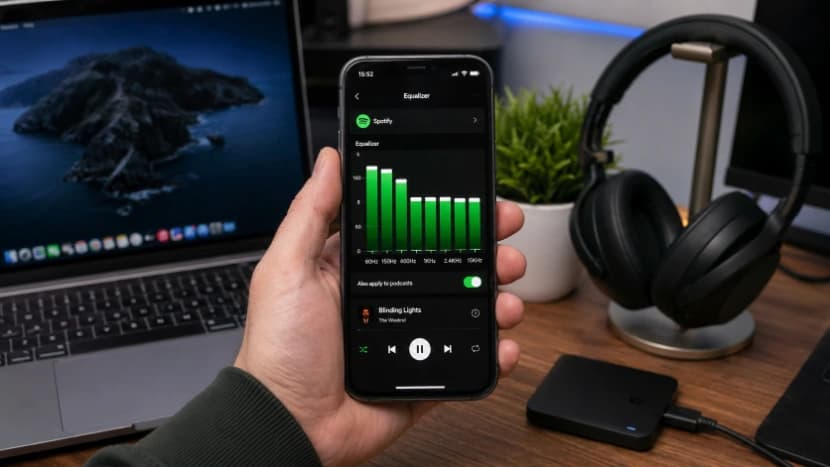
If Spotify music sounds thin, weak, or lacking low-end impact, you can usually improve it without installing complicated audio software. The first place to look is Spotify's Equalizer, which lets you change the balance between bass, midrange, and treble.
This guide explains how to increase bass on Spotify on iPhone, iPad, Android, Windows, and Mac, which EQ frequencies matter, practical bass settings to try, and what to do when the bass still sounds weak.
Quick answer: Open Spotify's settings, find Equalizer, and raise the lower-frequency bands gradually. A practical starting point is around +3 dB at 60 Hz and +2 dB at 150 Hz, while keeping the middle bands close to neutral. Adjust by ear because there is no single EQ curve that is best for every listener, song, headphone, or speaker.
Step By step Guide
Spotify's built-in Equalizer is the most direct way to increase bass because it changes the frequency balance of your music rather than simply making everything louder.
The exact menu names can vary by platform and app version, but the general process is:
- Open Spotify.
- Open your Settings.
- Go to Playback or the audio settings area.
- Open Equalizer if it is available.
- Turn the equalizer on.
- Raise the lower-frequency controls gradually.
- Play a familiar song and compare the result with the original sound.
- If the sound becomes muddy or distorted, reduce the boost.
For a quick starting point, try increasing the low-end bands by a few decibels rather than pushing every slider upward.
If you want to experiment with stronger low-end processing outside Spotify's own controls, you can also use the SonicLab Bass Booster.
How to boost bass on iPhone and iPad
On iPhone and iPad, Spotify provides an Equalizer option in the app when supported by the current version and device configuration.
Steps to increase bass on iPhone
- Open Spotify.
- Tap your profile picture.
- Select Settings and privacy.
- Tap Playback.
- Turn on Equalizer.
- Choose a bass-oriented preset if one is available.
- Alternatively, raise the lower-frequency controls manually.
Spotify's equalizer changes the levels of different frequency ranges in music and podcasts. For bass-heavy sound, concentrate on the lowest bands rather than increasing the entire frequency spectrum.
A good iPhone bass starting point
If your equalizer exposes frequency sliders, start conservatively:
- Around 60 Hz: +2 to +3 dB
- Around 150 Hz: +1 to +2 dB
- Around 400 Hz: 0 dB
- Midrange: 0 dB
- Presence: 0 to +1 dB
- Treble: 0 to +1 dB
Listen for several songs before making a larger adjustment.
How to increase bass on Spotify Android
Android is slightly less predictable because equalizer availability can depend on the phone manufacturer and its audio implementation.
Steps to increase Spotify bass on Android
- Open Spotify.
- Tap your profile picture.
- Open Settings and privacy.
- Look under Audio Quality or Playback.
- Select Equalizer if the option is available.
- Enable the equalizer or open the device's audio settings.
- Increase the lowest-frequency sliders gradually.
On some Android phones, Spotify may use or expose the phone manufacturer's own audio equalizer rather than providing identical controls on every device.
What to check if Equalizer is missing on Android
If you cannot find the Spotify equalizer, check the following. If none of these work, you can still shape the low end of a downloaded file with the online audio equalizer:
- Your phone's system sound settings
- Dolby Atmos, Sound Effects, Audio Enhancer, or similar audio menus
- The app provided by your headphone manufacturer
- Whether Spotify is updated
- Whether your Android operating system is updated
- Whether Spotify is currently playing through Spotify Connect
The important point is that missing EQ controls do not necessarily mean your phone cannot change bass. The manufacturer may provide the relevant controls at the system level.
How to adjust Spotify bass on Windows and Mac
The Spotify desktop application provides an Equalizer option under its playback settings.
Steps on Windows and Mac
- Open the Spotify desktop app.
- Click your profile picture.
- Select Settings.
- Scroll to Playback.
- Find Equalizer.
- Turn it on.
- Select a suitable preset or move the lower-frequency controls upward.
- Test the result at a moderate listening volume.
The desktop application is preferable when you need more audio controls than are available in the Spotify web player.
What about the Spotify web player?
The web player has fewer audio controls than Spotify's dedicated applications. If you specifically want to adjust frequency bands and create a bass-focused EQ profile, use the desktop or mobile application when the Equalizer is available, or run the file through the SonicLab Audio Equalizer in the same browser tab.
Best Spotify equalizer settings for bass
There is no universal best Spotify bass setting because the correct EQ depends on your headphones or speakers, the recording, the room, your hearing, and your personal preference.
Instead of treating one curve as objectively correct, use the following profiles as starting points. You can also try any of them on your own audio file first with the free SonicLab Audio Equalizer, a 10-band EQ that runs in the browser.
| Use case | Low bass / 60 Hz | Mid-bass / 150 Hz | Low mids / 400 Hz | Midrange / 1 kHz | Presence / 2.4 kHz | Treble / 15 kHz |
|---|---|---|---|---|---|---|
| Mild bass boost | +2 dB | +1 dB | 0 dB | 0 dB | 0 dB | 0 dB |
| Balanced everyday profile | +3 dB | +2 dB | 0 dB | 0 dB | +1 dB | +1 dB |
| Strong bass boost | +5 dB | +3 dB | 0 dB | -1 dB | 0 dB | +1 dB |
| Bass-heavy electronic music | +5 dB | +4 dB | -1 dB | -1 dB | +1 dB | +2 dB |
| Warm vocals and acoustic music | +2 dB | +2 dB | -1 dB | +1 dB | +1 dB | +1 dB |
| Reduce muddiness after boosting bass | +3 dB | +2 dB | -2 dB | 0 dB | +1 dB | +1 dB |
Recommended starting setting
For most listeners who simply want more bass without dramatically changing the character of a song, start with:
60 Hz: +3 dB
150 Hz: +2 dB
400 Hz: 0 dB
1 kHz: 0 dB
2.4 kHz: 0 to +1 dB
15 kHz: 0 to +1 dB
Then listen.
If the result sounds fuller and deeper, keep it. If it becomes boomy or muddy, reduce the boost or cut a small amount around 400 Hz.
What do the Spotify EQ frequencies mean?
Understanding the frequency bands makes it much easier to adjust bass without destroying vocal clarity.
| Frequency area | What you mainly hear |
|---|---|
| Around 60 Hz | Sub-bass depth, rumble, kick-drum weight |
| Around 150 Hz | Bass body, warmth, and fullness |
| Around 400 Hz | Boxiness and muddiness |
| Around 1 kHz | Vocal and instrument body |
| Around 2.4 kHz | Vocal presence, attack, and definition |
| Around 15 kHz | Brightness, air, and detail |
60 Hz: sub-bass and low-end weight
The area around 60 Hz contributes to deep bass, sub-bass sensation, and the physical weight of kick drums and bass instruments.
If Spotify music sounds too thin, a small increase here can add depth without dramatically changing vocals.
150 Hz: bass body and warmth
Around 150 Hz contributes to the body and fullness of bass instruments.
This band is useful when you want bass to sound warmer rather than simply adding very deep sub-bass.
400 Hz: muddiness and boxiness
The lower-midrange area around 400 Hz is important when troubleshooting a bass boost.
If you increase 60 Hz and 150 Hz too aggressively, the overall sound can become thick or muddy. A small reduction around 400 Hz can sometimes restore separation.
1 kHz and 2.4 kHz: vocals and presence
These ranges are not bass controls. They influence vocal and instrument clarity, presence, and attack.
If heavy bass makes vocals disappear, do not automatically increase the bass further. Reduce the bass boost or make a small adjustment to the midrange/presence instead.
15 kHz: brightness and air
The highest band contributes to brightness and high-frequency detail. It is not needed to increase bass.
A small treble adjustment can sometimes help preserve clarity after a bass boost, but it should be treated separately from the low-end adjustment.
Bass boost vs. louder volume
Increasing volume is not the same as increasing bass.
| Setting | What it changes | Does it specifically add bass? |
|---|---|---|
| Equalizer | Frequency balance | Yes |
| Spotify volume | Overall output level | No |
| Device volume | Overall playback loudness | No |
| Loudness normalization | Relative loudness between tracks | No |
| Higher streaming quality | Audio fidelity and compression quality | No direct bass boost |
| Headphone or speaker EQ | Frequency balance at the device level | Yes |
| Better headphones or speakers | Hardware reproduction | Potentially |
If you turn up the volume, the entire track becomes louder. An equalizer, by contrast, changes the relative level of selected frequency ranges.
For targeted bass enhancement, the equalizer is the correct first setting.
Does Spotify volume normalization increase bass?
No. Volume normalization controls relative loudness between tracks; it is not a bass booster.
Normalization can change the perceived impact of a song because loudness affects how we perceive audio, but it does not specifically increase the level of bass frequencies.
Spotify's documented loudness options have included approximate targets such as:
| Spotify loudness option | Approximate target |
|---|---|
| Quiet | -19 dB LUFS |
| Normal | -14 dB LUFS |
| Loud | -11 dB LUFS |
The important distinction is simple:
Use the equalizer to change frequency balance. Use volume normalization to manage differences in loudness between songs.
Do not enable the Loud normalization setting expecting it to function as a bass boost.
Does 320 kbit/s improve Spotify bass?
No. 320 kbit/s is an audio-quality setting, not a bass-boost setting.
The number 320 can be confusing because it can refer to Spotify's Very high streaming quality in contexts where that option is available. Higher-quality streaming can preserve more audio detail, but it does not automatically make the bass louder.
| Concept | What it means |
|---|---|
| 320 kbit/s | Audio-stream quality/bitrate |
| Bass boost | Frequency shaping |
| Equalizer | Changes the balance between frequency ranges |
| Lossless audio | Higher-fidelity audio representation |
| Louder volume | Increases overall output level |
Higher audio quality may make bass sound cleaner or more detailed under suitable playback conditions, but the recording, mastering, headphones, speakers, and EQ remain major factors.
Likewise, lossless audio does not guarantee stronger bass.
Why does Spotify bass still sound weak?
If you have increased the bass but Spotify still sounds thin, the problem may not be Spotify's EQ alone.
| Problem | Likely cause | Recommended fix |
|---|---|---|
| Equalizer missing on Android | Device manufacturer does not expose the feature | Use system EQ or a headphone app |
| EQ has no effect | Spotify is playing through Connect | Adjust EQ on the receiving device |
| Sound is muddy | Too much energy around the bass/lower mids | Reduce the boost and consider reducing 400 Hz |
| Bass is distorted | Excessive boost or insufficient hardware headroom | Reduce EQ boost and volume |
| Bass sounds thin over Bluetooth | Fit, codec, hardware, or device processing | Check fit, hardware, and device EQ |
| Tracks sound inconsistent | Different masters or loudness processing | Compare tracks under consistent settings |
| Web player lacks options | Fewer audio controls | Use the desktop or mobile app |
| Vocals disappear | Bass boost is masking the midrange | Reduce bass or restore some presence |
Spotify Connect can limit EQ control
Spotify Connect is an important exception.
When playback is being controlled through a connected receiving device, equalizer settings may not be adjustable from the Spotify app in the same way. In that situation, check the audio controls on the receiving speaker, television, receiver, amplifier, or other playback hardware.
How to increase bass without making music muddy
A common mistake is moving every EQ slider upward.
That does not create a controlled bass boost. It simply changes the entire frequency balance and can make the track louder, congested, or distorted.
Use this process instead:
- Start with a small low-frequency boost such as +2 or +3 dB.
- Test the setting with several genres.
- Keep listening volume moderate while comparing settings.
- If the sound becomes muddy, reduce the lower-midrange area around 400 Hz slightly.
- If distortion appears, reduce the EQ boost and overall volume.
- Toggle the EQ on and off to confirm that you actually prefer the modified sound.
For pop, hip-hop, and electronic music, a useful starting experiment is +3 dB around 60 Hz and +2 dB around 150 Hz. If vocals become unclear, reduce the bass boost or slightly reduce the 400 Hz region instead of continuing to raise the low end.
Why bass boost can cause distortion
Bass requires playback hardware to move more air. If you apply a large EQ boost and then listen at a high volume, your headphones, speakers, amplifier, or device may not have enough headroom.
The result can be:
- Crackling
- Clipping
- Boomy bass
- Loss of vocal clarity
- Reduced dynamic impact
- An unnatural or tiring sound
A controlled EQ adjustment is usually better than simply applying the maximum available bass preset.
If you hear distortion after increasing bass, turn the boost down first. Increasing the volume further will not solve the problem.
Spotify bass settings for different music genres
Different genres can respond differently to the same EQ curve.
Hip-hop and rap
Hip-hop often benefits from stronger low-end weight, particularly around the sub-bass and bass regions. Start conservatively and listen for whether the kick and bass become more defined without masking vocals.
Electronic and EDM
Electronic music can tolerate a stronger low-end profile when the headphones or speakers reproduce sub-bass well. A moderate boost around 60–150 Hz is a useful starting point.
Pop
Pop often contains prominent vocals and layered production. A moderate bass boost is usually preferable to an extreme one because too much low-end energy can reduce vocal clarity.
Rock
Rock mixes contain guitars, drums, vocals, and bass competing across a broad frequency range. A smaller bass adjustment can preserve the separation between the kick drum, bass guitar, guitars, and vocals.
Classical and acoustic music
For classical or acoustic recordings, subtle changes are generally more appropriate. A small increase in low frequencies can add warmth, but excessive bass can change the natural character of the recording.
Can you increase bass without an equalizer?
Yes, but an equalizer is generally the most direct software method.
Other factors can affect perceived bass:
- Headphone or speaker design: Different hardware has different frequency responses.
- Ear-tip or headphone fit: A poor seal can dramatically reduce perceived low frequencies, especially with in-ear headphones.
- Device audio processing: Phones and computers may have system-level sound enhancements.
- Playback hardware: An amplifier or speaker system with better low-frequency reproduction can produce deeper bass.
- The recording itself: Some songs simply contain less low-frequency energy than others.
If your headphones physically cannot reproduce very low frequencies, an EQ can increase the signal but cannot create hardware capabilities that are not there.
How to get deeper bass from headphones
If Spotify's EQ adjustment is not producing the expected result, check the hardware before applying a much larger boost.
Check the fit
For in-ear headphones, the ear-tip seal is especially important. A poor seal can make bass sound dramatically weaker.
Check device processing
Look for settings such as:
- Equalizer
- Dolby Atmos
- Sound Effects
- Audio Enhancer
- Bass Boost
- Headphone optimization
The names differ between manufacturers.
Avoid extreme EQ
If you need a very large boost to hear normal bass, the limiting factor may be your headphones, fit, source, or playback chain rather than Spotify itself.
Frequently asked questions
How do I increase bass Spotify?
Open Spotify's settings, go to Playback, open Equalizer if available, and raise the lower-frequency controls gradually. Start with a small boost and adjust by ear.
Does Spotify have a bass booster?
Spotify provides an Equalizer on supported platforms and devices. Some versions or devices may also provide bass-oriented presets. Availability and preset names can vary.
What is the best bass EQ setting for Spotify?
There is no universal best setting. A practical starting point is +3 dB around 60 Hz and +2 dB around 150 Hz, with the other bands close to neutral. Adjust it based on your headphones, speakers, music, and preference.
Why can't I find Equalizer on Android?
Android equalizer availability can depend on the phone manufacturer and its audio implementation. Check your phone's system sound settings, audio-enhancement menus, and headphone app if Spotify does not expose an Equalizer option.
Can I increase bass on Spotify desktop?
Yes. In the Spotify desktop application, open Settings, find Playback, and look for the Equalizer option.
Can I increase bass in the Spotify web player?
The web player has fewer audio controls than the dedicated Spotify applications. If you need detailed EQ controls, use the desktop or mobile app when the Equalizer is available.
Does Spotify Connect support the equalizer?
Spotify Connect can limit where EQ settings can be changed. If playback is being sent to another device, check the receiving speaker, receiver, television, amplifier, or its companion app for audio controls.
Does 320 kbit/s make Spotify bass stronger?
No. 320 kbit/s describes streaming quality, not bass enhancement. Higher quality can affect fidelity, but it does not directly boost low frequencies.
Does volume normalization increase bass?
No. Volume normalization changes relative loudness between tracks. It does not specifically increase bass frequency levels.
Why does boosted bass sound distorted?
A large EQ boost can exceed the available headroom of the playback chain and produce clipping or distortion. Reduce the EQ boost and overall volume if distortion appears.
How can I make Spotify sound deeper without making it muddy?
Use a moderate low-frequency boost rather than raising every EQ band. If the result becomes muddy, reduce the lower-midrange area around 400 Hz and compare the result with the EQ switched off.
Increase bass beyond Spotify's built-in controls
Spotify's Equalizer is a useful first step, but you may want more control when experimenting with different bass profiles.
If you want to process an audio file and apply a stronger or more controlled low-frequency boost, try the SonicLab Bass Booster. For band-by-band control over bass, mids, and treble, the SonicLab Audio Equalizer gives you a full 10-band EQ with genre presets and MP3/WAV export.
It can be useful when you want to:
- Experiment with stronger bass enhancement
- Compare an original track with a boosted version
- Create a bass-focused audio file
- Fine-tune the low end beyond simple playback controls
Final takeaway
The easiest way to increase bass on Spotify is to use the built-in Equalizer and make a controlled adjustment to the lowest frequency bands.
Start around +3 dB at 60 Hz and +2 dB at 150 Hz, then listen and adjust. If the result becomes muddy, reduce the lower-midrange area rather than continuously increasing the bass. If you hear distortion, reduce the EQ boost and playback volume.
Remember that Spotify's equalizer changes frequency balance, while volume normalization changes relative loudness and higher streaming quality changes audio fidelity. None of those settings can replace headphones or speakers that have fundamentally limited low-frequency reproduction.
For more aggressive or file-based bass enhancement, use the SonicLab Bass Booster.
Related guides
- Audio Equalizer — Free 10-band EQ to shape bass, mids, and treble
- BPM Finder — Detect the tempo of your music in seconds
- Song Key Finder — Find the musical key of an audio track
- Slowed + Reverb Generator — Create slowed and atmospheric versions of songs
- Nightcore Maker — Speed up and pitch-shift songs