How Do I Change the Playback Speed on YouTube?
Changing the playback speed on YouTube lets you watch videos faster or slower without changing the video itself. You can adjust the YouTube playback speed from the video player's settings on a computer, phone, and many TVs or streaming devices.
If you're in a hurry, open a YouTube video, select Settings, choose Playback speed, and select the speed you want. On a computer, you can also use keyboard shortcuts to speed up or slow down playback.
The exact controls can vary slightly by device. This guide explains how to change YouTube playback speed on Windows and Mac computers, iPhone, Android, phones, Smart TVs, and supported streaming devices, along with keyboard shortcuts, Shorts, custom speed, troubleshooting, and advanced methods.
How Do I Change the Playback Speed on YouTube?
Quick answer: Open a YouTube video, select the Settings icon in the player, choose Playback speed, and select the playback rate you want. On supported TVs and streaming devices, the option may appear as Speed instead.
YouTube's standard playback-speed control changes how quickly the video plays while leaving the original video unchanged. A setting of 1× is normal playback, while speeds below 1× slow the video down and speeds above 1× make it play faster.
How to Change Playback Speed on YouTube on a Computer
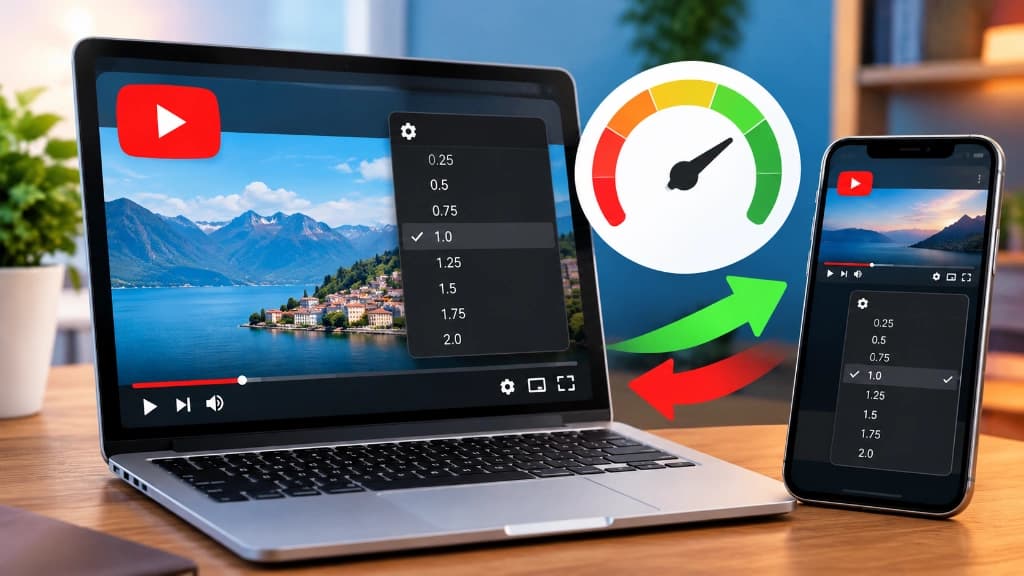
On a computer, you can change the playback speed directly from the YouTube video player.
- Open the YouTube video you want to watch.
- Move your mouse over the video player.
- Click the Settings gear icon.
- Select Playback speed or Speed.
- Choose the playback speed you want.
For example, selecting 1.25× makes the video play 25% faster than normal, while 0.5× plays it at half speed.
You can use this feature in a desktop web browser such as Chrome, Edge, Firefox, or Safari, although the exact interface can change as YouTube updates its player.
YouTube also provides keyboard shortcuts for changing playback speed. Press > to increase the playback rate and < to decrease it when the relevant player controls are active.
How Do I Change the Playback Speed on YouTube on iPhone?
On an iPhone or iPad, changing YouTube playback speed takes only a few taps.
- Open the YouTube app.
- Open the video you want to watch.
- Tap the video once to display the controls.
- Tap the Settings gear icon.
- Tap Playback speed.
- Select your preferred speed.
YouTube's current iPhone and iPad instructions use this Settings → Playback speed path.
You can choose a slower rate when you need to examine a demonstration, tutorial, music performance, or other detailed footage. For lectures, interviews, podcasts, and long-form educational videos, a faster speed can help you get through the material more efficiently.
How Do I Change the Playback Speed on YouTube Android?
To change YouTube playback speed on Android:
- Open the YouTube app.
- Start the video.
- Tap the video once.
- Tap Settings.
- Select Playback speed.
- Choose the speed you want.
YouTube's Android documentation currently gives this same basic procedure. YouTube notes that playback at different speeds requires Android 5.0 or later.
If the Playback speed option does not appear, update the YouTube app and try again. You should also check whether the issue is specific to one video, the app, or your device.
How Do I Change the Playback Speed on YouTube on My Phone?
Whether you use an iPhone or Android phone, the basic process is similar: open the video → tap Settings → Playback speed → choose a speed.
On iPhone and Android, the playback-speed control is part of the YouTube video player's settings. The exact appearance of the menus can change with YouTube app updates, but the underlying function remains the same.
If you're searching for how to adjust YouTube speed on your phone, you generally do not need a separate speed-control app or browser extension. Start with YouTube's built-in playback controls.
How to Change Playback Speed on YouTube on TV
Playback-speed support on televisions depends on the specific Smart TV or streaming device.
On supported devices:
- Open the YouTube video.
- Open the Settings menu in the video player.
- Select Speed.
- Choose the desired playback speed.
YouTube specifically notes that playback speed may not be available on all Smart TVs and streaming devices.
If you do not see a Speed option on your television, the limitation may be related to the YouTube app, TV platform, or streaming device rather than the video itself.
How to Speed Up a YouTube Video
To speed up a YouTube video, open the video's Settings menu, select Playback speed, and choose a value above 1×. Common choices include 1.25×, 1.5×, and 2×.
Speeding up playback is useful when you want to get through long videos more quickly without skipping sections.
How to Watch YouTube at 1.25x, 1.5x, or 2x Speed
The most commonly useful faster playback speeds are 1.25×, 1.5×, and 2×.
- 1.25×: Slightly faster than normal and useful when you want a small time saving.
- 1.5×: A noticeable increase in speed while remaining comfortable for many spoken videos.
- 2×: Plays the video twice as fast and can be useful for lectures, tutorials, reviews, and other content where you already understand the subject.
To select one of these speeds, open Settings → Playback speed and choose the desired rate.
The best setting depends on the content and how quickly you can comfortably understand the audio and visuals.
How Do I Speed Up YouTube Videos?
To speed up YouTube videos, choose a playback rate greater than 1× from the player's Playback speed menu.
For example, if a video is 60 minutes long, watching it at approximately 1.5× reduces the playback time substantially compared with normal speed, although the actual time saved depends on whether you pause, rewind, or interact with the video.
Faster playback is particularly useful for:
- Online courses
- Lectures
- Tutorials
- Interviews
- Podcasts
- Product demonstrations
- Long presentations
- Familiar topics you can understand quickly
Increasing playback speed does not permanently edit the YouTube video. It changes how the player presents the video during your viewing session.
How to Speed Up YouTube Videos More Than 2x
If you want to watch a YouTube video faster than 2×, first check the playback-speed options available in your current YouTube interface and device.
YouTube's standard playback controls and available speed options can vary by platform and feature. Therefore, do not assume that every device supports every playback rate.
If the speed you want is not available through YouTube's normal interface, third-party browser tools or advanced browser techniques may offer additional control on desktop, but those methods can break when YouTube changes its player.
For downloaded audio rather than YouTube playback, SonicLab's Nightcore Maker can create a faster, pitch-adjusted version of a track.
For ordinary viewing, YouTube's built-in controls are the safest and simplest option.
YouTube 2x Speed and Faster Playback
2× playback means the video plays twice as fast as normal.
For example, a 30-minute video watched continuously at 2× would take approximately 15 minutes of playback time.
You can normally select 2× from Settings → Playback speed on supported devices.
YouTube also provides a temporary fast-forward behavior: on supported interfaces, pressing and holding the video can play it at 2× speed until you release the control. YouTube documents this behavior for mobile and other supported interfaces.
How to Slow Down a YouTube Video
To slow down a YouTube video, open Settings, select Playback speed, and choose a rate below 1×.
Slower playback is useful for tutorials, demonstrations, sports footage, music performances, pronunciation practice, and any video where the normal speed is difficult to follow.
How Do I Slow Down YouTube Videos?
Open the YouTube video, select Settings → Playback speed, and choose a speed below 1×.
Common slow playback options include:
- 0.75×
- 0.5×
- 0.25×
A slower speed can make small movements and spoken explanations easier to follow.
For example, if someone demonstrates a software workflow quickly, reducing playback to 0.75× or 0.5× can give you more time to see each step.
For audio files, SonicLab's Slowed & Reverb Generator can create a slowed version with adjustable reverb and pitch.
How to Watch YouTube in Slow Motion
YouTube's slower playback modes effectively create a slow-motion viewing experience.
Choose a playback rate below 1× from the video settings. Lower rates are useful for:
- Sports technique
- Dance movements
- Instrumental performances
- Tutorials
- Science demonstrations
- Pronunciation
- Detailed visual instructions
Remember that slow playback is still controlled by YouTube's player. It does not create a new permanently slowed version of the video.
How to Slow Down YouTube Shorts
YouTube Shorts have historically had different playback controls from standard YouTube videos. However, YouTube announced a rollout of 2× playback for Shorts in 2026, giving viewers additional speed control.
Because Shorts features can be rolled out gradually and interfaces can vary by account, app version, and device, the exact controls you see may differ.
If you want to slow down a Short specifically, look for available playback-speed controls in the Shorts player. If a slower speed is not offered in your version of the player, the standard YouTube Shorts interface may not currently provide the exact slow-motion rate you want.
How to Speed Up YouTube Shorts
YouTube introduced a 2× playback option for Shorts, including a press-and-hold interaction for fast playback. YouTube's announcement explains that viewers can press and hold the edge of the Shorts player to play at 2× speed and release to return to normal playback.
YouTube also described an option to keep the Short at 2× playback for the video through an additional player interaction. Availability can depend on the current rollout and interface.
This is different from the Speed tool used when creating or recording a Short. That creator-side tool changes the recording speed; the playback controls discussed here affect how you watch an existing Short.
How to Change Playback Speed on YouTube With Keyboard
On a computer, YouTube provides keyboard shortcuts for changing playback speed. Press > to speed up playback and < to slow it down.
Keyboard controls are particularly useful when you're watching a lecture, tutorial, podcast, or long video and want to adjust playback without repeatedly opening the Settings menu.
YouTube Playback Speed Keyboard Shortcuts
YouTube's official keyboard-shortcut documentation lists:
| Shortcut | Function |
|---|---|
> | Speed up video playback |
< | Slow down video playback |
L | Seek forward 10 seconds |
J | Seek backward 10 seconds |
K | Play/pause |
M | Mute/unmute |
F | Enter or exit full screen |
YouTube specifically identifies the < and > keys as the shortcuts for changing the playback rate.
Depending on your keyboard layout, you may need to use the Shift key to produce < or >.
How to Use the Keyboard to Speed Up or Slow Down YouTube
On a computer:
- Open the YouTube video.
- Make sure the YouTube player is active.
- Press
>to increase playback speed. - Press
<to decrease playback speed. - Continue adjusting until you reach the desired playback rate.
If the shortcut does not work, click the video player and try again. Browser extensions, focused text fields, or other page elements can sometimes capture keyboard input instead of the YouTube player.
YouTube's keyboard shortcuts are intended for desktop playback and are separate from the touch controls used on phones and tablets.
How Do I Change the Playback Speed on YouTube Shorts?
YouTube now supports 2× playback for Shorts as part of its updated Shorts player experience. The feature was introduced in 2026 after users requested more control over Shorts playback.
Changing Playback Speed While Watching YouTube Shorts
When the 2× Shorts playback feature is available:
- Open a YouTube Short.
- Press and hold near the edge of the Shorts player.
- The Short can play at 2× speed while you hold the control.
- Release to return to normal playback.
YouTube has also described a way to lock the Short at 2× speed using an additional player gesture.
Because YouTube continues to change and roll out features in stages, you may not see exactly the same controls on every account or device.
Why YouTube Shorts Speed Controls May Be Different
YouTube Shorts use a dedicated vertical video player rather than the same full set of controls found on a standard watch page.
That means features can appear differently, and Shorts playback controls can be updated independently from the regular YouTube player.
If a speed option is missing:
- Update the YouTube app.
- Restart the app.
- Check whether another Short shows the same behavior.
- Try the latest version of the YouTube app.
- Check whether the feature is available on your device or account.
YouTube's official Shorts documentation also distinguishes between recording speed for creating Shorts and playback controls for watching them.
How to Use Custom Playback Speed on YouTube
Custom playback speed gives you more control than simply choosing a standard preset. If your YouTube interface provides a custom-speed option, open Playback speed and adjust the available control to the rate you want.
YouTube Custom Speed Controls
YouTube's playback interface can provide preset speed options and, where supported, more granular control.
A custom playback speed can be useful when:
- 1.25× feels too slow
- 1.5× feels too fast
- You need a precise rate for studying
- You are practicing pronunciation
- You are analyzing a performance
- You are following a technical demonstration
The exact custom-speed interface can change as YouTube updates its player, so the controls you see may not be identical across browsers, apps, and devices.
How to Adjust YouTube Playback Speed Precisely
Start by opening Settings → Playback speed.
If your current YouTube player provides a custom or fine-grained speed control, use it to select the playback rate between the available limits.
For example, a viewer may prefer a rate between common presets rather than jumping directly from 1.25× to 1.5×.
If custom speed is not available in your current YouTube interface, use the closest built-in playback option rather than relying on unofficial scripts or extensions.
How to Change Playback Speed on YouTube With Inspect Element
Inspect Element can sometimes be used with a browser's developer tools to interact with the underlying HTML media element, but it is not an official YouTube playback-speed method and can stop working when YouTube changes its player.
Can Inspect Element Change YouTube Playback Speed?
Modern browsers expose a standard HTML media property called playbackRate, which controls the playback rate of an HTML media element. A value of 1.0 represents normal playback, while values above or below 1 change the rate accordingly.
This is the technical principle behind many browser-based playback-speed techniques.
However, YouTube is a complex web application. Its player, page structure, JavaScript, and video delivery architecture can change, so an Inspect Element technique that works today may fail after a YouTube update.
For ordinary users, YouTube's built-in Playback speed controls are preferable because they require no developer tools or JavaScript manipulation.
Why the Inspect Element Method May Stop Working
Inspect Element methods are fragile because they depend on the current implementation of the web page.
YouTube can change:
- HTML elements
- JavaScript behavior
- Player architecture
- DOM structure
- Event handling
- Browser compatibility
- Video-player controls
A method based on a particular element or script can therefore become obsolete without notice.
There is also a difference between changing an HTML media element's playback rate and controlling YouTube's entire player experience. The browser API supports playback-rate changes, but that does not guarantee that every custom script will work correctly with YouTube's current player.
A Better Way to Control YouTube Playback Speed
For most viewers, use YouTube's native controls first:
Settings → Playback speed → Select a speed
On desktop, the built-in < and > keyboard shortcuts are also simpler than opening developer tools.
Use advanced browser techniques only when you understand that they are unofficial, potentially temporary, and dependent on the current YouTube implementation.
YouTube Playback Speed Controls and Shortcuts
YouTube provides several ways to control playback, including the Settings menu, playback-speed controls, keyboard shortcuts, seeking gestures, and device-specific controls.
YouTube Playback Speed Controller
The built-in YouTube playback speed controller is located inside the video's settings menu on supported platforms.
On computers, open the video settings and select Playback speed or Speed. On mobile devices, tap the video and then open Settings to access Playback speed.
The controller changes playback speed without modifying the original YouTube video.
YouTube Video Speed Controller
A YouTube video speed controller can refer to the native playback-speed menu or to a third-party browser extension that provides additional controls.
For normal viewing, the native YouTube controller should be your first choice. Third-party speed controllers may offer additional functionality, but they can have compatibility, privacy, or maintenance considerations.
If an extension stops working after a YouTube interface change, check whether the extension has been updated before relying on it.
YouTube 2x Speed Shortcut
There are two different concepts that are easy to confuse:
Keyboard speed control: YouTube's official keyboard shortcuts use > and < to increase or decrease playback speed.
Press-and-hold fast playback: YouTube also supports a temporary 2× fast-forward interaction on supported interfaces. On mobile, pressing and holding the video can activate 2× playback while held.
These are not the same feature.
Fast-Forward and Rewind Controls
YouTube provides seeking controls in addition to playback-speed controls.
On mobile, you can generally:
- Double-tap the left side of the video to rewind 10 seconds.
- Double-tap the right side to fast-forward 10 seconds.
- Press and hold the video for temporary 2× playback on supported interfaces.
On desktop, YouTube also provides keyboard controls such as J for moving backward and L for moving forward.
Fast-forwarding is different from increasing the video's overall playback speed: seeking moves you to another point in the video, while playback speed changes how quickly the video plays.
YouTube Playback Speed Not Working? Here's How to Fix It
If YouTube can't change playback speed, first update the YouTube app or browser, reload the video, and test another video or supported device. Playback-speed availability can vary by device, and Smart TVs or streaming devices may not support the feature.
YouTube Can't Change Playback Speed
If you cannot change the playback speed:
- Open another YouTube video.
- Reload the current page or restart the app.
- Check whether Settings → Playback speed is available.
- Update your YouTube app or browser.
- Restart your device.
- Test YouTube on another supported device.
If playback speed works on another device, the problem is more likely related to the original app, browser, device, or platform.
Playback Speed Option Is Missing
A missing Playback speed option does not necessarily mean your account is broken.
Possible explanations include:
- The feature is not supported on that device.
- The YouTube app needs updating.
- The device is using an older YouTube application.
- YouTube is testing or changing the interface.
- The particular player has different controls.
- The feature is unavailable on a specific TV or streaming platform.
YouTube explicitly notes that playback speed may not be available on all Smart TVs and streaming devices.
Can't Change Playback Speed on YouTube After an Update
If YouTube worked previously but the playback-speed control disappeared after an update, first check the current player carefully.
The location or appearance of controls can change when YouTube updates its interface.
On mobile, make sure you are using the latest version of the YouTube app. YouTube's troubleshooting guidance recommends updating the app, closing and reopening it, and restarting the device when video problems occur.
If you're using a browser, also test YouTube in a private/incognito window. This can help determine whether a browser extension or cached site data is interfering with the player.
Browser and App Troubleshooting
For persistent playback problems, work through these steps:
- Update YouTube.
- Update your browser if you are using YouTube on a computer.
- Close and reopen YouTube.
- Restart your device.
- Test another video.
- Disable problematic browser extensions temporarily.
- Try a private/incognito window.
- Test another supported device.
YouTube recommends updating the app, restarting the app and device, and testing another supported device for persistent playback problems.
If only one video has the problem, the issue may be specific to that video or its available player features rather than your entire YouTube account.
YouTube Playback Speed Options Explained
Understanding playback-rate numbers makes it easier to choose the right setting.
A value of 1× represents normal playback. A value below 1× slows the video, while a value above 1× speeds it up.
What Does 0.25x Speed Mean?
0.25× means the video plays at one-quarter of normal playback speed.
A video that normally takes 60 minutes to play would require approximately four hours at 0.25× if watched continuously.
This very slow setting can be useful for examining fast movements, detailed demonstrations, or other content where you need to see individual actions clearly.
What Does 0.5x Speed Mean?
0.5× means the video plays at half normal speed.
It is useful for slowing down:
- Tutorials
- Music performances
- Sports movements
- Dance
- Technical demonstrations
- Pronunciation examples
It is often easier to understand than extremely slow 0.25× playback while still providing substantially more time to observe the content.
What Does 0.75x Speed Mean?
0.75× means the video plays at 75% of normal speed.
This is useful when normal playback feels slightly too fast but 0.5× feels unnecessarily slow.
For spoken content, 0.75× can provide additional time to understand unfamiliar terminology without dramatically changing the natural flow of the video.
What Does 1x Speed Mean?
1× is normal playback speed.
It is the default reference point for all other playback rates.
For example:
- 0.5× = half speed
- 0.75× = three-quarters speed
- 1× = normal speed
- 1.5× = one and a half times speed
- 2× = twice normal speed
What Do 1.25x, 1.5x, 1.75x, and 2x Mean?
These values represent multiples of the video's normal playback rate.
| Speed | Meaning |
|---|---|
| 1.25× | 25% faster than normal |
| 1.5× | 50% faster than normal |
| 1.75× | 75% faster than normal |
| 2× | Twice as fast as normal |
For example, a 40-minute video watched continuously at 2× would take approximately 20 minutes.
The actual viewing time will be longer if you pause, rewind, take notes, or interact with the video.
Why Change YouTube Playback Speed?
Changing playback speed is useful because different types of content require different viewing rates.
A fast lecture may be easier to follow at 1.25× or 1.5×, while a complex demonstration may be easier to understand at 0.75× or 0.5×.
When to Speed Up YouTube Videos
Speeding up YouTube videos can help when:
- You already understand the subject.
- A speaker talks slowly.
- You are reviewing familiar material.
- You are watching a long lecture.
- You are going through a tutorial you've already seen.
- You want to review a podcast or interview quickly.
- You need to save time while retaining the main information.
Many viewers find 1.25× to 1.5× comfortable for spoken content, while 2× can be useful when the material is familiar or the speaker is easy to understand.
When to Slow Down YouTube Videos
Slowing down playback can make visual or spoken details easier to process.
It is useful for:
- Technical tutorials
- Music instruction
- Dance
- Sports technique
- Instrument demonstrations
- Language learning
- Pronunciation
- Detailed software tutorials
- Scientific demonstrations
Slower playback does not make the original video higher quality. It simply gives you more time to process each moment.
Using Playback Speed for Tutorials, Music, and Learning
Playback speed is particularly valuable for educational content.
For tutorials, you can slow the video while following a complicated step and then return to normal or faster playback once you understand it.
For learning, faster playback can reduce the time needed to review familiar information, while slower playback can help with difficult concepts.
For music and performance analysis, slower playback can make individual movements easier to observe. However, remember that changing playback speed affects the entire presentation, including its audio characteristics.
Frequently Asked Questions About YouTube Playback Speed
How do I change the playback speed on YouTube?
Open a YouTube video, select Settings, choose Playback speed, and select the desired speed. On supported TVs and streaming devices, the option may be labelled Speed.
How do I change the playback speed on YouTube on iPhone?
Open the YouTube app, start a video, tap the video, select Settings, tap Playback speed, and choose your preferred rate. YouTube's current iPhone and iPad instructions follow this process.
How do I change the playback speed on YouTube Android?
On Android, open the video, tap the player, select Settings → Playback speed, and choose the desired rate. YouTube currently documents this process for Android devices.
How do I change the playback speed on YouTube Shorts?
YouTube introduced 2× playback for Shorts in 2026. On supported versions of the Shorts player, pressing and holding near the edge of the player can activate 2× playback. Availability may vary during feature rollout and across devices.
How do I change playback speed on YouTube with keyboard?
On a computer, YouTube's official keyboard shortcuts use > to speed up playback and < to slow it down. If the shortcut does not respond, click the video player and try again.
How do I change playback speed on YouTube on TV?
On supported Smart TVs and streaming devices, open the video player's Settings, select Speed, and choose a playback rate. YouTube notes that playback speed is not available on every Smart TV or streaming device.
Why can't I change the playback speed on YouTube?
The feature may be unavailable on your device, hidden because of a changed interface, affected by an outdated app or browser, or temporarily affected by a playback problem. Update YouTube, restart the app or device, test another video, and try another supported device if necessary.
Can I watch YouTube videos at 2x speed?
Yes. On supported YouTube players, you can select 2× from the Playback speed menu. YouTube also provides a press-and-hold 2× playback interaction on supported interfaces.
Can I watch YouTube videos at 3x or 4x speed?
The availability of very high playback rates depends on the current YouTube interface, device, and feature support. Do not assume that 3× or 4× playback is available in the standard controls on every platform.
If the desired speed is not shown in YouTube's Playback speed menu, the native player may not currently support that rate on your device.
Can I use custom playback speed on YouTube?
If your current YouTube player provides a custom or fine-grained speed control, you can use it to select a playback rate more precisely than the standard presets. However, custom-speed availability and controls can vary by platform and current YouTube interface.
Can Inspect Element change YouTube playback speed?
Inspect Element or browser developer tools can interact with web-page elements and, technically, browsers provide an HTML media playbackRate property for controlling media playback speed. However, using developer tools to modify YouTube playback is unofficial and can stop working when YouTube changes its player implementation.
For normal viewing, YouTube's built-in Playback speed controls and official keyboard shortcuts are more reliable and easier to use.