
How to Reverse Audio Online for MP3s, Songs, and Voice Recordings
Create downloadable backward audio files for music, videos, voice clips, and sound design without installing software.
You may want to create a rising transition before a chorus, turn a voice clip into a strange effect, or hear what happens when a song plays from end to beginning. Learning how to reverse audio online gives you a fast way to create that backward version without a desktop editor. Use the free SonicLab Audio Reverser to upload a file, preview the reversed result, and export it directly from your browser.
What It Means to Reverse Audio Online
To reverse audio online means changing an audio file so its final sample plays first and its first sample plays last. The file keeps the same duration, sample rate, and channel count, but every sound arrives in the opposite order.
A cymbal crash is an easy example. Normally, it starts with a loud hit and fades out. Once reversed, the quiet tail comes first and rises into the impact. That upward movement makes reversed audio useful for transitions, reveals, drops, and dramatic scene changes.
A true audio reverser creates a new backward file that you can download and reuse. It does not simply simulate reverse playback in a player.
Reverse audio online when you need a saved, editable backward version of a recording.
Reverse Playback vs. a Reversed Audio File
Reverse playback lets you listen to a track backward temporarily. A reversed audio file is a new export you can place in a DAW, video editor, podcast timeline, sound library, or game project.
That difference matters when you need a reverse vocal, reverse crash, or backward transition to stay in place after you close the browser.
How to Reverse Audio Online in Three Steps
The quickest way to learn how to reverse audio online is to use a browser-based tool that handles the audio reversal and export in one workflow.
- Upload your audio file. Open the SonicLab browser-based audio reverser and upload an MP3, WAV, M4A, OGG, or FLAC file. SonicLab accepts supported files up to 100 MB.
- Preview the backward version. SonicLab creates a reversed copy of your recording. Switch between the original and reversed playback modes to hear the difference before you save anything.
- Export the format you need. Choose WAV when you plan to edit the reversed file further. Choose MP3 when you need a smaller file for sharing, playback, or quick project delivery.
- Download and use the result. Save the reversed audio, then import it into your DAW, mobile editor, video project, social clip, or sound-effect collection.
You do not need plugins, account registration, or desktop software to complete the process.
The practical answer to how to reverse audio online is upload, preview, export, and place the backward file where your project needs it.
Reverse MP3 Files and Songs: Formats and Export Choices
A reverse MP3 file is useful for quick sharing, while WAV is usually better for production, editing, and layered effects. The right choice depends on what you plan to do after reversal.
| Audio format | Best use | Recommended reverse-audio workflow |
|---|---|---|
| MP3 | Sharing, messaging, lightweight playback | Reverse songs, voice notes, and social-media audio |
| WAV | Music production and video editing | Export reversed clips for DAWs and non-linear editors |
| M4A | Mobile recordings and AAC audio | Reverse recordings captured on phones or exported from media apps |
| OGG | Web and open-source audio projects | Reverse game sounds, browser audio, and creative effects |
| FLAC | High-quality archived recordings | Reverse source files before additional production work |
WAV is the better option when you will add effects, stretch the sound, adjust timing, or mix the clip with other tracks. MP3 is useful when compact file size matters more than further editing flexibility.
SonicLab exports WAV for high-quality editing workflows and MP3 at 192 kbps for smaller files. Use the free reverse audio tool when you need both options without installing audio software.
Choose WAV for production work and MP3 for fast playback or sharing.
How to Reverse a Song for Music Production
Producers use reversed songs and short reverse audio clips to create anticipation before a major musical moment. The original decay becomes a rise, which naturally pulls the listener toward the next beat.
Create Reverse Reverb and Transition Effects
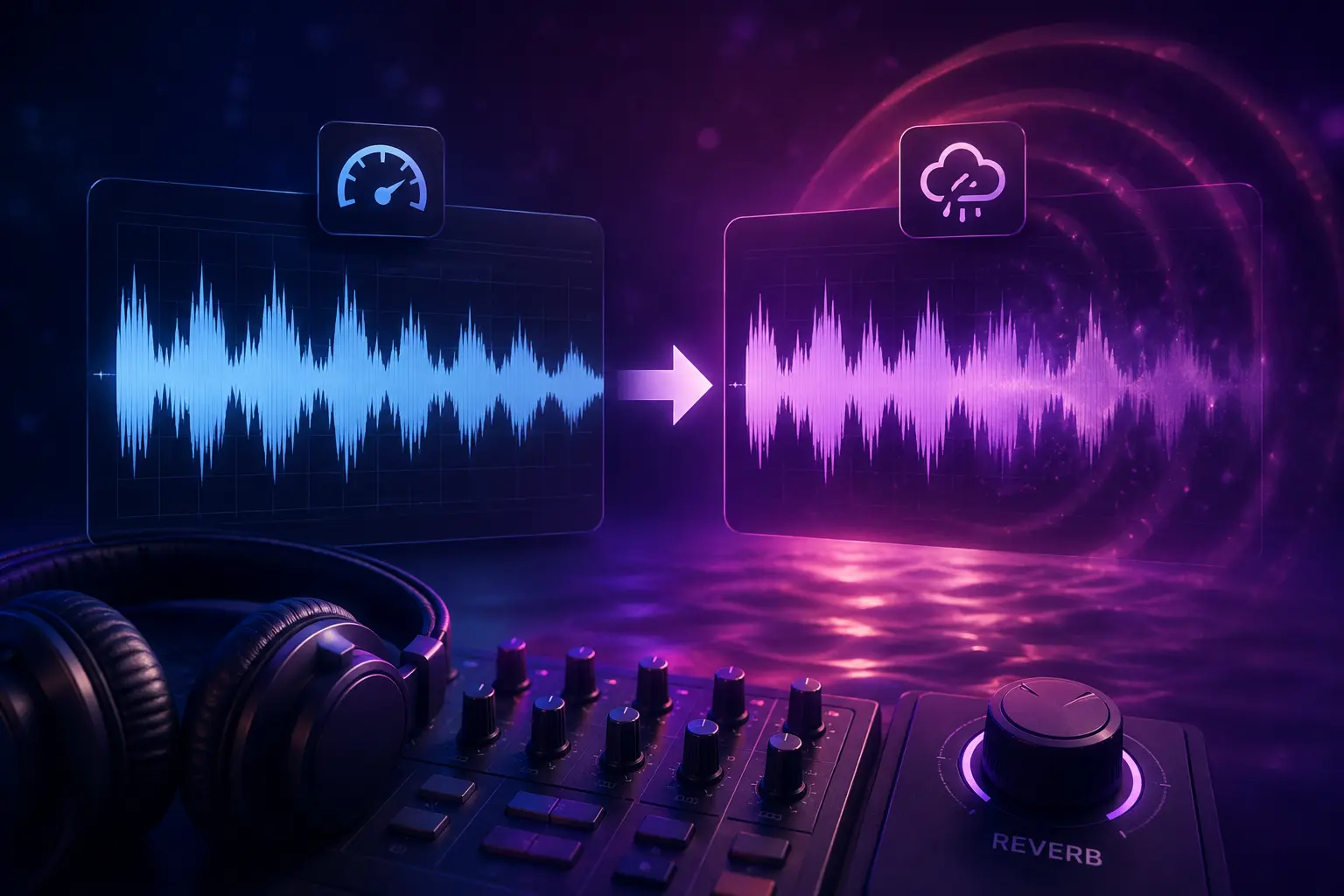
Reverse reverb usually starts with a reverb-rich sound, such as a snare, vocal phrase, clap, guitar chord, or impact. You reverse that processed tail and place it before the original dry hit.
This effect is common in pop, EDM, trap, cinematic music, hip-hop, and trailer sound design. You can create a reverb-heavy source with the Slowed & Reverb Generator, then reverse that file to produce a longer and more dramatic swell.
Time Reverse Audio to the Beat
A reverse crash or vocal chop sounds strongest when its endpoint lands on a clear musical event. That event might be the first kick of a drop, the first snare of a chorus, or a vocal entry.
House music commonly sits around 120–128 BPM. Many trap productions use 130–150 BPM with halftime drum patterns. Use the SonicLab BPM Finder or read how to find BPM of any song before placing transitions against a beat grid.
- End a reversed crash on beat one.
- End a reverse vocal swell before the lead vocal begins.
- Use short reverse clips for tight transitions.
- Use longer reversed ambience for cinematic build-ups.
- Keep the effect quieter than the main hit it leads into.
A reversed song effect becomes musical when it ends exactly where the next important sound begins.
How to Reverse a Voice Recording and Sound Effects
A voice reverser changes spoken words, whispers, narration, breaths, and voice notes into backward audio. The result can sound mysterious, surreal, tense, or playful depending on the original recording.
Short voice clips often work better than full paragraphs because you can place them precisely before a cut, beat, title card, or reveal. A reversed whisper can create suspense, while a reversed shout can become an impact build-up.
How to Make a Sound Play Backwards for Video and Games
You can reverse almost any sound effect: doors, footsteps, rain, wind, metal hits, camera shutters, crowd noise, and mechanical sounds. Familiar sounds often become unrecognizable when reversed, which makes them useful for science-fiction, horror, motion graphics, and game atmospheres.
Try these practical ideas:
- Reverse a door creak before an on-screen reveal.
- Reverse a cymbal or impact before a logo animation.
- Reverse a breath before a spoken line.
- Reverse water or wind for an unusual ambient texture.
- Reverse a short vocal phrase before a music drop.
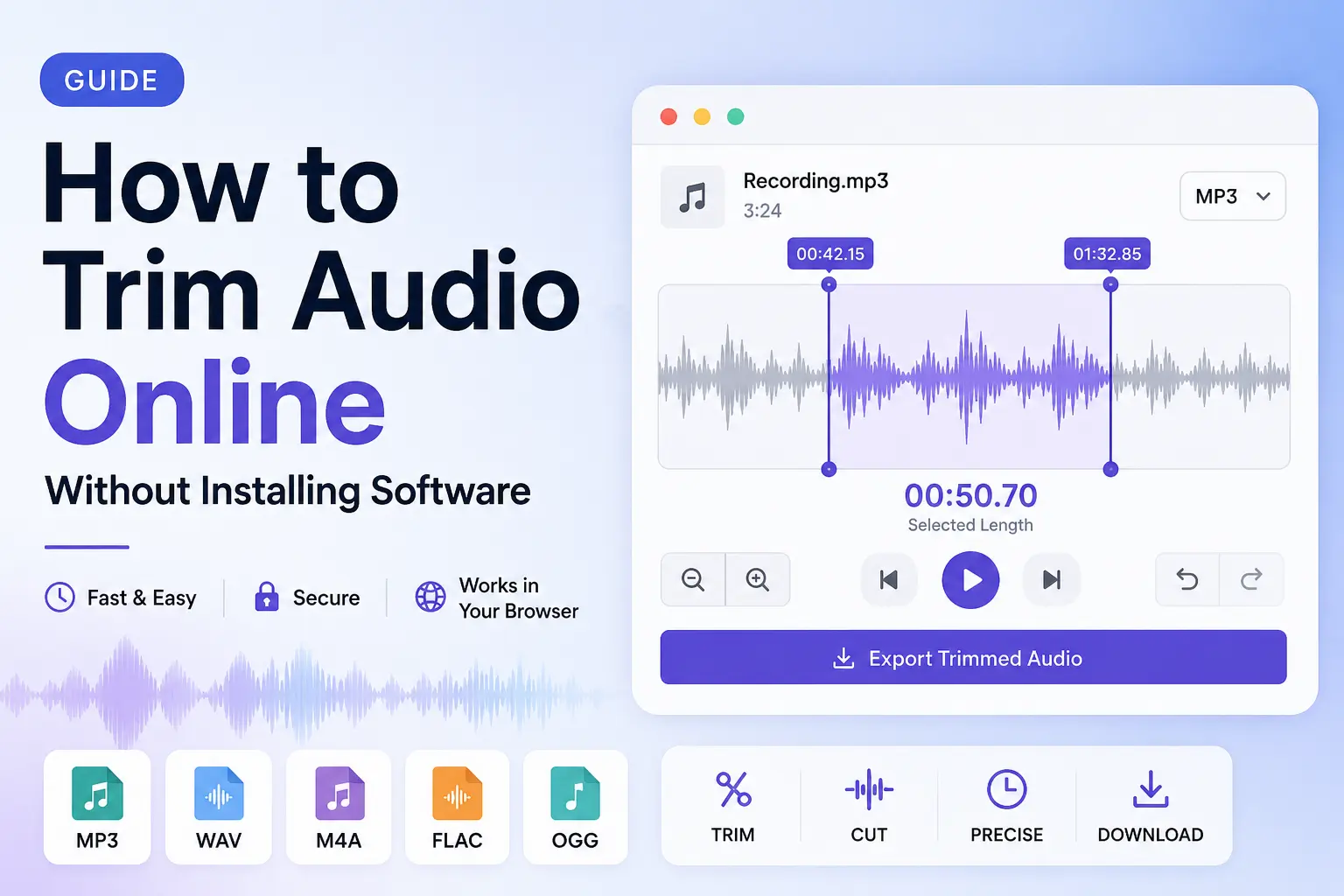
After reversing a voice recording, use the Voice Pitch Shifter to change its tone for a deeper, brighter, or more stylized result. For related production ideas, see how to trim audio online.
Reversing speech is a creative effect, not a privacy technique. Do not use backward audio to protect confidential recordings or personal information.
A reverse voice recording works best when you treat it as a deliberate sound-design element.
Is It Safe to Play a Record Backwards?
Reversing a digital audio file is safe because the software changes sample order in a copied file. It does not affect your original recording, and it does not require special hardware.
Playing a physical vinyl record backward is different. Do not force a standard turntable platter backward by hand or attempt reverse playback on equipment that was not designed for it. The safer option is to digitize the recording, then reverse the digital file with an audio reverser.
Digital Reverse Audio Is the Better Workflow
Digital reversal gives you more control over file format, export quality, timing, and editing. You can also preview the backward result, trim it, layer it, and align it with a project timeline.
When you need a reverse version of a song, voice note, or sound effect, use a copied digital file rather than experimenting with physical playback equipment.
Reverse the digital file, not the physical record, when you want a controlled and practical result.
Reversing Audio in Audacity, CapCut, and Logic Pro
Desktop and mobile editors can reverse audio, but the workflow differs by platform. A browser-based reverser is usually faster when you only need to flip a file and download the result.
Reverse Audio in Audacity
In Audacity, you generally import the audio, select the required section, apply the reverse effect, then export the file. This works well for detailed editing because you can reverse one word, one bar, or an entire recording.
Reverse Audio in CapCut
CapCut is useful when the reversed sound belongs inside a social-video edit. Import the audio into the timeline, select the clip, look for available reverse or audio-editing controls, and check the timing against your video cut.
Reverse Audio in Logic Pro
Logic Pro is best when you are building a full production. You can reverse audio regions, position them on the grid, add automation, layer reverb, and route the result through your mix.
For simple file reversal, the SonicLab Audio Reverser is faster because it does not require project setup, software installation, or account creation. You can then import the finished reversed file into Audacity, CapCut, Logic Pro, or another editor.
Use a DAW for detailed arrangement work and a browser-based reverser for fast standalone file exports.
Frequently Asked Questions
Q: How do I reverse audio online for free?
Upload an MP3, WAV, M4A, OGG, or FLAC file to SonicLab's Audio Reverser. Preview the backward version, choose WAV or MP3 export, and download the result without installing software or creating an account.
Q: Can I reverse an MP3 song online?
Yes. You can reverse an MP3 song online by uploading it to a browser-based audio reverser and exporting the backward version. The song keeps the same duration, but its audio plays from end to beginning.
Q: Can I reverse a voice recording?
Yes. A voice reverser can flip voice notes, narration, spoken phrases, whispers, and vocal clips. Reversed speech is useful for creative effects, transitions, experimental sound design, and music production.
Q: Does reversing audio change the pitch or speed?
No. Reversing audio changes playback order, not the file's speed or pitch. A reversed recording has the same duration as the original unless you apply separate time-stretching or pitch-shifting effects afterward.
Q: What is the best format for reversed audio?
WAV is best when you plan to edit or mix the reversed audio again because it is more suitable for production workflows. MP3 is better when you need a smaller file for quick sharing or standard playback.
Q: Can I reverse sound effects for videos or games?
Yes. Reversed sound effects can create risers, suspense, transitions, impacts, and unfamiliar textures for video editing, games, trailers, and motion graphics. Short sounds are usually easier to time than full recordings.
Try SonicLab Audio Reverser Free — No Account Needed
You now know how to reverse audio online for MP3 files, songs, voice recordings, and sound effects. Use backward audio to build tension, shape transitions, create unusual textures, and prepare clips for your next project.
SonicLab is free, browser-based, and ready when you need a fast audio reversal workflow without software setup.
Also check out the Slowed & Reverb Generator and Voice Pitch Shifter.
Related guides
- How to Find BPM of Any Song — Identify tempo before aligning reverse transitions to a beat grid.