How to Trim Audio Online Without Installing Software
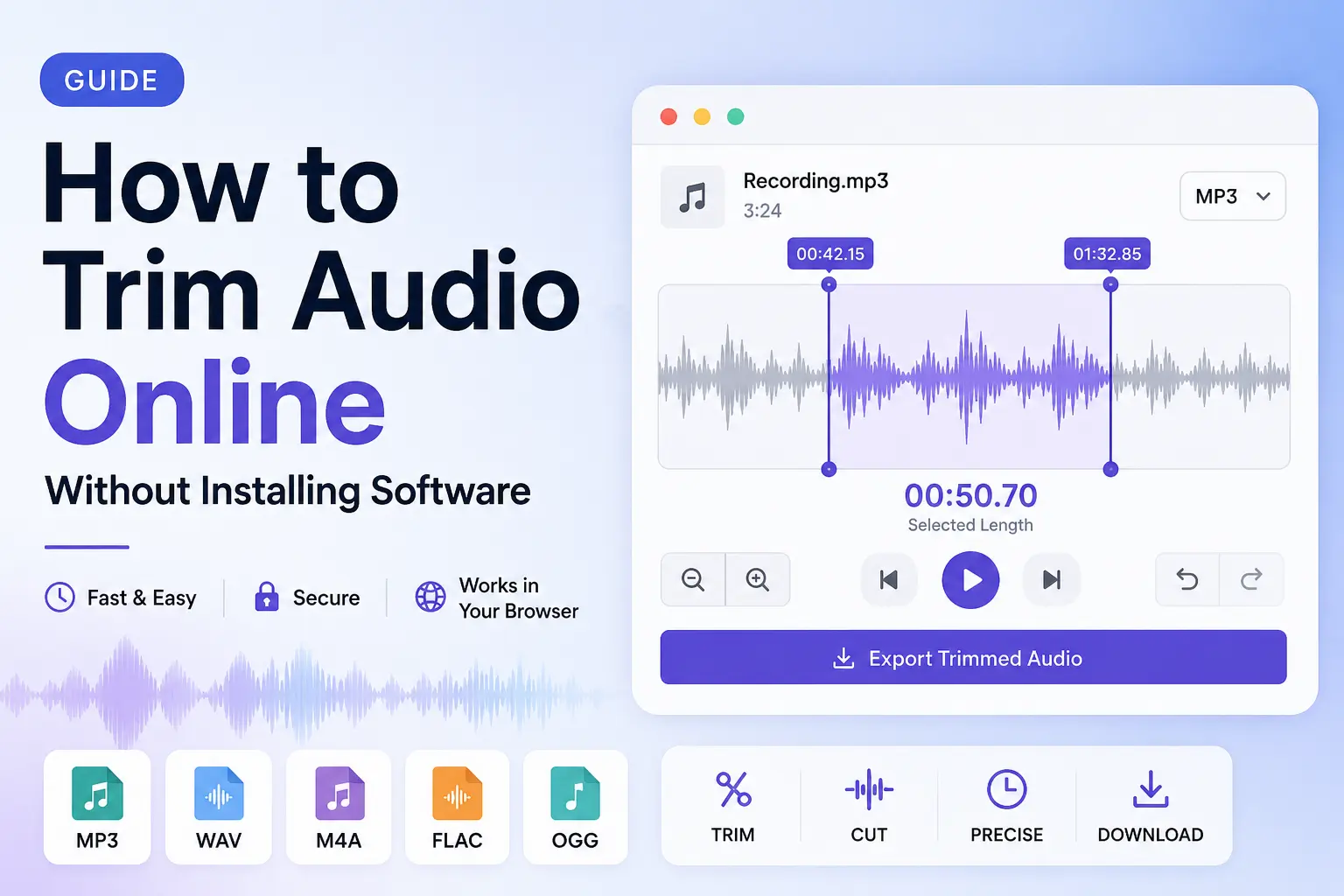
Quick answer: To trim audio online, upload an audio file to a browser-based tool, choose the first and last moment you want to keep, check the timing, and export the shorter clip. This is useful for shortening songs, cleaning voice recordings, removing silence, creating ringtones, and extracting a specific section from a longer file.
You do not need desktop editing software for basic trimming. A modern browser can handle many common formats, including MP3, WAV, M4A, AAC, OGG, and FLAC.
What Does It Mean to Trim an Audio File?
Trimming means keeping one selected portion of an audio recording and removing everything before or after it.
For example, imagine you have a five-minute recording but only need the section from 1:10 to 1:45. Set the start point to 1:10, set the end point to 1:45, and export that selected clip.
Trimming is different from advanced editing. It does not add music, remove background noise, mix tracks, or apply effects. It simply helps you shorten an existing recording accurately.
How to Trim Audio Online in Four Steps
1. Upload your audio file
Open a browser-based audio trimming tool and add your file by dragging it into the upload area or selecting it from your device.
SonicLab currently accepts:
- MP3
- WAV
- M4A
- AAC
- OGG
- FLAC
Files up to 500 MB can be loaded through the tool.
2. Find the part you want to keep
After the file loads, look at the waveform. A waveform is the visual shape of your recording. Louder sounds usually create taller peaks, while quieter sections appear smaller.
Drag the start and end handles to select the section you want to save. You can also enter a precise start time and end time manually.
For example:
| Goal | Start Time | End Time |
|---|---|---|
| Keep a chorus | 00:42 | 01:12 |
| Remove a long introduction | 00:15 | End of file |
| Create a short voice clip | 01:05 | 01:32 |
| Make a ringtone | 00:48 | 01:18 |
3. Check the timing around both cut points
Use the playhead and playback controls to inspect the recording around your selected boundaries.
Listen closely to the first second and last second of the section you want to keep. Move the handles slightly when a cut begins too early, ends too late, or removes part of a spoken word, beat, or note.
A small adjustment can make a trimmed recording sound much cleaner.
4. Export the shorter file
Choose your preferred output format, then download the finished clip.
SonicLab offers two export options:
- MP3 at 192 kbps: Smaller and convenient for sharing, ringtones, messaging, and everyday playback.
- WAV: Larger uncompressed PCM output that is useful when you plan to continue editing the clip later.
Open SonicLab’s Audio Trimmer to trim a file in your browser.
Which Audio File Format Should You Choose?
The best format depends on how you plan to use the finished clip.
| Format | Best for | Important consideration |
|---|---|---|
| MP3 | Sharing, ringtones, email, messaging, general playback | Smaller file size but uses lossy compression |
| WAV | Further editing, archiving, production workflows | Larger file size because audio is uncompressed |
| M4A | Apple-device recordings and AAC-based audio | Browser support can vary by codec |
| FLAC | High-quality source files and archival audio | Not every browser handles every FLAC variation equally |
| OGG | Web and open-format audio files | Compatibility can vary by browser and device |
MP3 vs WAV after trimming
Choose MP3 when file size and convenience matter most. It is generally more practical for a ringtone, voice clip, or file you plan to send through a messaging app.
Choose WAV when you need an uncompressed output file for additional work in an audio editor. WAV files are larger, but they avoid adding another lossy compression step during export.
Neither output format can restore quality that was already lost in the original recording.
Can You Trim an M4A or MP4 File?
M4A is an audio-focused container format commonly used with AAC audio. It is a practical option for recordings from Apple devices and many mobile apps.
MP4 usually refers to a video container. Some .mp4 files may contain only an audio track, but browser support depends on the codec inside the file. For predictable audio-only trimming, use an M4A file where possible instead of relying on an MP4 video file.
Common Reasons to Shorten an Audio File
Make a ringtone from a song
A ringtone usually works best when it starts at the recognisable part of a track. Instead of using a long introduction, trim the audio down to the chorus, hook, or instrumental section you want to hear.
A clip between 20 and 30 seconds is often enough for a ringtone or notification sound.
Clean up a voice memo
Voice recordings often include pauses, mistakes, background chatter, or a few seconds of silence at the beginning and end.
Trim those unnecessary sections before sharing the recording with a client, teacher, colleague, friend, or family member.
Create a podcast clip
A short podcast excerpt can be easier to share than an entire episode. Select the strongest quote, story, explanation, or announcement, then save only that section.
This is useful for social posts, show notes, internal reviews, and quick reference clips.
Remove silence from a recording
Many recordings begin with dead air because the recorder started early. Others end with silence after the speaker stops.
Trimming the start and end of the file makes the recording feel more deliberate and reduces file length without changing the main content.
Extract a sound effect or music excerpt
When you only need a short sound effect, vocal phrase, ambient noise, or music excerpt, trimming lets you isolate the relevant section from a longer source file.
Always make sure you have the right to use or share copyrighted recordings.
How to Trim MP3 Files Without Downloading Software
MP3 is one of the most common formats for music, podcasts, voice recordings, and downloaded audio.
To shorten an MP3 in your browser:
- Upload the MP3 file.
- Move the start handle to where the clip should begin.
- Move the end handle to where it should finish.
- Check the timing around both cut points.
- Export as MP3 for a smaller file or WAV for uncompressed output.
This workflow is useful when you need to trim an MP3 quickly on a work computer, Chromebook, phone, tablet, or device where desktop audio software is not installed.
How to Trim a WAV File
WAV files are commonly used in music production, voice-over work, sound design, and recording projects because they store uncompressed audio.
The trimming process is the same:
- Load the WAV file.
- Select the section to keep.
- Fine-tune the start and end times.
- Export as WAV when you want an uncompressed result.
Because WAV files can be large, make sure your device has enough storage space before downloading the finished file.
How to Shorten a Voice Note
To shorten a voice note, focus on the beginning and end first.
Remove unnecessary setup phrases, extended pauses, accidental recordings, and closing silence. Then listen around the cut points to make sure the message still begins and ends naturally.
For a professional voice note, keep the useful message, remove the dead air, and export an MP3 when a smaller shareable file is enough.
Audio Trimmer vs Audio Cutter vs Audio Editor
These terms are often used together, but they do not always mean exactly the same thing.
| Tool type | Typical purpose | Example |
|---|---|---|
| Audio trimmer | Keeps one selected range and removes unwanted beginning or ending sections | Save 00:30 to 01:00 from a song |
| Audio cutter | Often used as another name for trimming; may also refer to splitting a file into clips | Divide a long recording into smaller sections |
| Audio editor | Offers broader controls such as equalisation, effects, volume changes, mixing, and multi-track work | Add reverb, adjust volume, or combine recordings |
For simple shortening tasks, a browser-based trimming tool is usually faster than opening a full audio editor.
Common Audio Trimming Mistakes to Avoid
Cutting spoken words too closely
Leave a very small amount of natural space before and after speech. Cutting directly into a word can make the audio sound abrupt.
Removing the first beat of a song
When trimming music, listen closely to where the rhythm begins. Starting one fraction of a second too late can remove the impact of the first beat.
Exporting MP3 repeatedly during editing
MP3 uses lossy compression. When you expect to make more edits later, save a WAV copy for the working version and create an MP3 only when you need a smaller final file.
Assuming every browser supports every codec
File extensions do not guarantee that every browser can decode the audio inside the file. If a file does not load, try opening it in another modern browser or converting it to MP3, WAV, or M4A first.
Frequently Asked Questions
Can I trim audio without installing software?
Yes. A browser-based tool lets you upload a compatible audio file, choose a start and end point, and download a shorter clip without installing desktop software.
Can I trim an MP3 file online?
Yes. Upload the MP3, select the section you want to keep, and export the shortened file.
Can I trim a WAV file online?
Yes. WAV files can be trimmed in the same way as MP3 files. Exporting as WAV is useful when you want an uncompressed output file.
Does trimming reduce audio quality?
Trimming itself removes unwanted sections. Output quality depends on the export format. WAV output is uncompressed PCM audio, while MP3 output uses lossy compression at 192 kbps.
Can I make a ringtone from a song?
Yes. Select the section you want, usually a chorus or memorable hook, then export it as an MP3. Check your device’s ringtone requirements before adding the file.
Why will my audio file not open?
Your browser may not support the codec inside the file, even when the file extension looks familiar. Try a current browser version or use a more widely compatible format such as MP3, WAV, or M4A.
Can I trim a voice note on a phone?
Yes. Browser-based tools can be used on modern phones and tablets. Upload the voice recording, adjust the start and end points, and download the shorter version.
Trim Your File When You Only Need the Important Part
You do not need a complicated editing suite to shorten a song, clean a voice recording, create a ringtone, or extract a podcast excerpt.
Choose the part that matters, set the start and end points carefully, select the output format that fits your goal, and save the final clip.