How to make slowed and reverb songs (free & step-by-step)
If you've ever heard a song that sounds like it's drifting through a warm, underwater haze — half-speed vocals, a wash of echo trailing behind every note, most probabely you've heard slowed and reverb. In my opnion it's one of the easiest remix styles to learn, but getting it to sound right instead of just muddy takes a few specific settings. This blog walks through exactly how to make slowed and reverb songs manually in Audacity, FL Studio, Ableton Live, and Logic Pro, plus the fastest way to get the same result without opening any software at all.
By the end, you'll know the exact speed and reverb values professionals use, the single most common mistake that ruins most slowed and reverb edits, and when a manual DAW workflow is actually worth the extra time.
What is slowed and reverb music?
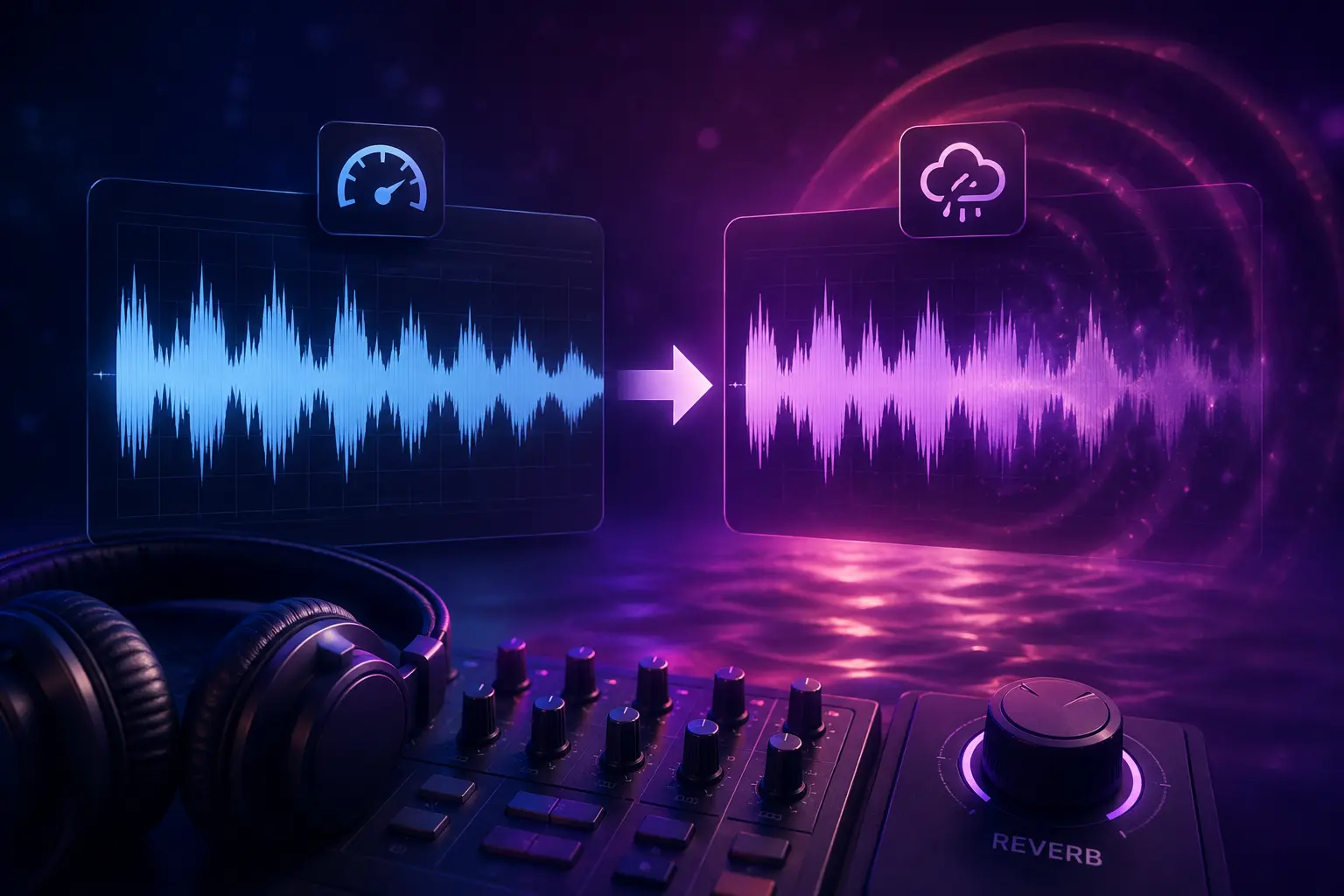
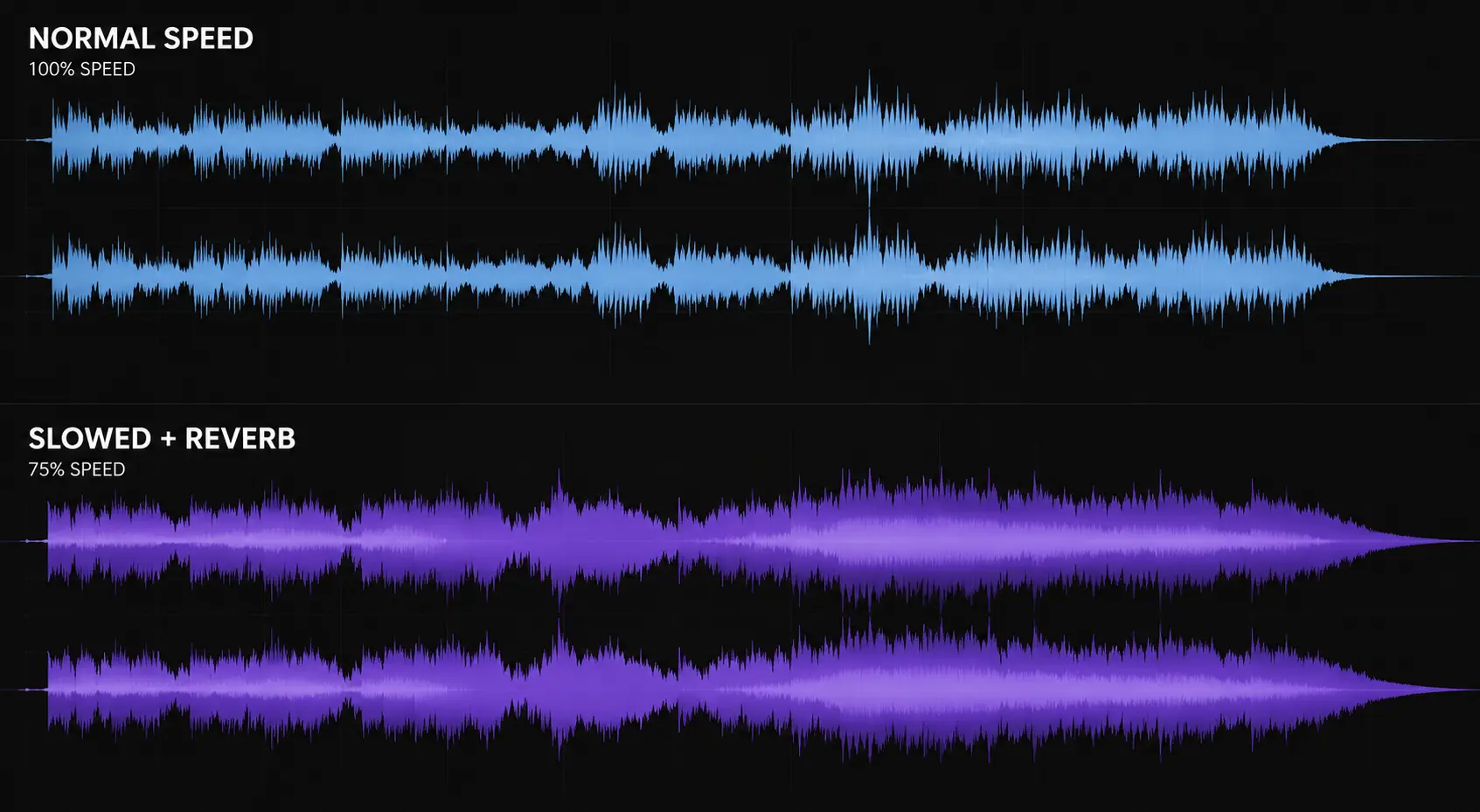
Slowed and reverb is a remix technique that reduces a song's playback speed — typically to 75–90% of the original — while layering a reverb effect on top, creating a dreamy, spacious sound. Unlike a simple tempo change, the pitch drops along with the speed, which is what gives the vocals their signature deep, hazy quality.
The style traces back to DJ Screw's "chopped and screwed" movement, which came out of 1990s Houston hip-hop. Chopped and screwed involved manually rearranging tracks and scratching vinyl to create something closer to a full remix. Modern slowed and reverb is a simpler descendant of that idea — it keeps the original song structure intact and focuses purely on the speed drop and spatial reverb, which is part of why it's so accessible to make.
You'll find slowed and reverb everywhere now: hour-long YouTube loops, TikTok background audio, Spotify "study and chill" playlists, and SoundCloud remix pages. It's become one of the most streamed remix formats on the internet, largely because the effect is genuinely pleasant to listen to and simple enough that almost anyone can produce a decent version.
Why people make slowed and reverb remixes
The appeal isn't just novelty — there are a few real reasons this style has stuck around:
- Emotional depth. Slowing a track down exposes vocal textures and instrumental layers that get lost at normal speed. The reverb adds a sense of space that makes familiar songs feel new.
- Study and focus music. The reduced tempo and soft echo make slowed tracks less distracting than the original, which is why they're a staple of "lo-fi study" and ambient playlists.
- Content creation. TikTok and YouTube editors reach for slowed and reverb clips as background audio for aesthetic edits, transitions, and cinematic B-roll.
- A low-barrier entry into production. For anyone curious about audio editing, slowed and reverb is forgiving — there's no melody or arrangement to get wrong, just two effects to dial in.
- Nostalgia. Slowing down a song you already know well makes it feel like a half-remembered version of itself, which is a big part of the emotional pull.
How to make slowed and reverb in Audacity (free method)
Audacity is a free, open-source editor for Windows, Mac, and Linux, and it's the most common starting point for a manual slowed and reverb edit. Here's the full process.
Step 1: Import your audio
Open Audacity and go to File → Import → Audio, then select the MP3, WAV, or FLAC file you want to remix. The track will load into the main editor as a waveform.
Step 2: Slow down the track
Select the entire track with Ctrl+A (or Cmd+A on Mac), then go to Effect → Change Speed. Set the speed reduction to around -15% for a 0.85× playback speed, or -25% for a heavier 0.75× effect, and click Apply.
Important: Use "Change Speed," not "Change Tempo." Change Speed lowers pitch and tempo together, which is what creates the classic slowed and reverb sound. Change Tempo keeps the pitch the same — you'd end up with slow music, not slowed and reverb.
Step 3: Apply reverb
With the track still selected, go to Effect → Reverb. These starting values work well for most songs:
| Parameter | Recommended value |
|---|---|
| Room Size | 75–85% |
| Reverb | 40–60% |
| Damping | 50% |
| Wet Gain | -1 dB to -3 dB |
| Dry Gain | 0 dB |
| Stereo Width | 100% |
Click Preview to check how it sounds, then OK to apply. If it comes out too washed out or the vocals get lost, lower the Room Size slightly or increase the Damping.
Step 4: Optional — add a bass boost
For a warmer low end, go to Effect → Bass and Treble and increase bass by +3 to +6 dB. Go easy here — pushing it further tends to make the mix sound muddy rather than warm.
Step 5: Export
Go to File → Export → Export as MP3 (or WAV if you want a lossless file). Name it, set the bitrate — 320kbps is recommended for MP3 — and save.
How to make slowed and reverb in FL Studio or other DAWs
If you're already working in FL Studio, Ableton Live, or Logic Pro, the same core idea applies — slow the tempo, drop the pitch with it, then add reverb — but you get finer control over the result.
FL Studio method
- Import your audio by dragging the file into the Playlist or Channel Rack.
- Lower the project tempo to about 85% of the original. A 120 BPM song, for example, would become roughly 102 BPM. Make sure the audio clip's stretch mode is set to Resample, not e2 or e3 — Resample is what links pitch to tempo.
- Add reverb in the Mixer using Fruity Reeverb 2 or Convolver on an insert channel. Set the wet/dry mix to 40–60%, decay time to 3–5 seconds, and room size to large.
- Optional bass boost: add Fruity Parametric EQ 2 and boost the 80–150 Hz range by +3 to +5 dB.
- Export via File → Export → WAV or MP3.
Ableton Live method
- Import the audio into an Audio Track.
- In the clip settings, switch Warp Mode to Re-Pitch — this is the setting that links pitch to tempo, and it's essential for the slowed and reverb effect.
- Lower the master tempo to roughly 85% of the original (120 BPM → 102 BPM, for example).
- Add a Reverb device from Audio Effects. Set Decay to 4–6 seconds and Dry/Wet to 40–60%.
- Export via File → Export Audio/Video.
Logic Pro method
- Import your audio file onto a track.
- Select the region, open the Region Inspector, and enable Flex & Follow → Speed, then lower the project tempo.
- Add Space Designer or ChromaVerb for reverb, starting with a large hall preset.
- Export via File → Bounce → Project.
Common mistakes to avoid
Slowed and reverb is a simple technique, but a few recurring mistakes separate a clean remix from a muddy one.
- Using "Change Tempo" instead of "Change Speed." This is the single most common error. Change Tempo keeps the pitch the same, so you get a slower version of the song without the pitch drop — which technically isn't slowed and reverb at all. Always use Change Speed in Audacity, or Resample/Re-Pitch mode in your DAW.
- Overdoing the reverb. Pushing reverb to 100% turns the vocals into an indistinct wash. Start around 40–50% and add more only if needed — the lyrics should still be intelligible.
- Stacking too much bass boost. Slowing a track already thickens the low end naturally. Adding a heavy bass boost on top of that tends to create a boomy, distorted sound. Cap it at around +3 dB unless you're deliberately going for an exaggerated bass-heavy effect.
- Skipping normalization before export. Speed and reverb changes often reduce a track's overall loudness. Normalize to around -1 dB before exporting so the final file isn't noticeably quieter than the original.
- Exporting at a low bitrate. Reverb tails carry a lot of subtle high-frequency detail, and that detail gets destroyed at low bitrates like 128kbps. If you're exporting MP3, use 320kbps.
Tip: If your slowed and reverb edit sounds harsh or grainy rather than smooth, the issue is almost always too little reverb decay time or too much bass — not a technical export problem.
The faster way: making slowed and reverb online
The Audacity and DAW workflows above work well, but they come with real setup cost — installing software, learning the interface, and spending 15–30 minutes per track getting the settings right. That's a reasonable trade-off if you're producing a polished remix for release. It's a lot of friction if you just want a quick slowed and reverb version of a song for a video or a personal playlist.
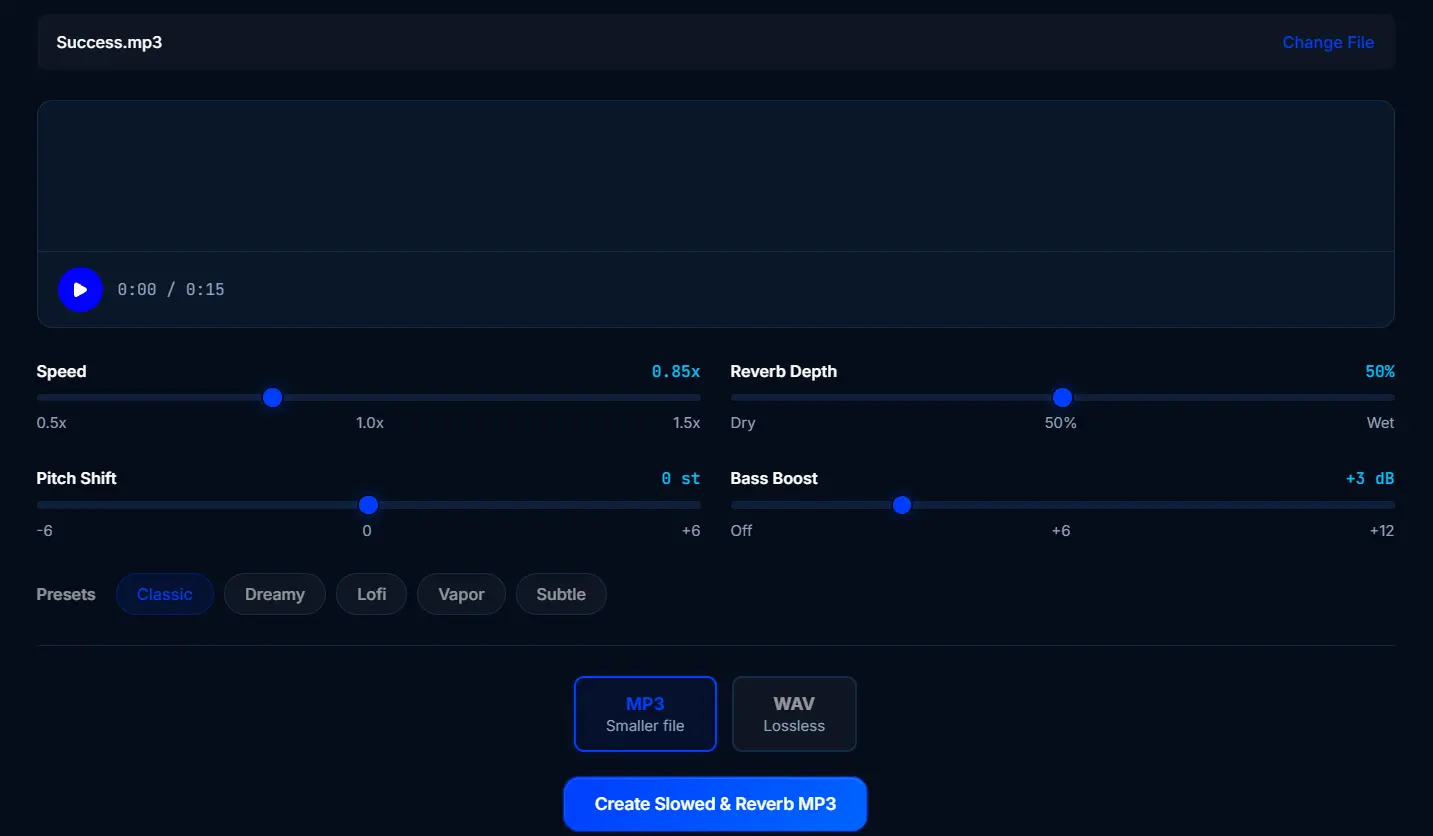
That's the gap an online tool fills. SonicLab's slowed and reverb generator runs entirely in your browser — upload a song, adjust speed, reverb depth, pitch, and bass with a live preview, and download the result in seconds. There's no account, no software install, and it works on any device with a browser.
Instead of building out an effects chain and rendering offline, you get a slowed and reverb version of any song with a handful of slider adjustments. Presets like Classic, Dreamy, Lo-fi, and Vapor give you a solid starting point that you can fine-tune from there.
Manual DAW vs. online tool: which should you use?
| Audacity / DAW | Online generator | |
|---|---|---|
| Setup time | Install + learn interface | None — works in browser |
| Time per track | 15–30 minutes | Under a minute |
| Control | Full parameter access | Presets + core sliders |
| Best for | Polished releases, fine-tuned mixes | Quick edits, social content, previews |
| Cost | Free (open-source tools) | Free |
If you need precise control over every parameter — or you're preparing a track for release — the DAW route is still the better choice. If you want a good-sounding result fast, an online tool gets you there without the setup.
Frequently Asked Questions
What speed should I use for slowed and reverb?
Most slowed and reverb edits sit between 75% and 90% of the original speed, with 85% being the most common starting point. Slower isn't automatically better — pushing much past a 25% reduction can make vocals sound distorted rather than dreamy.
Does slowed and reverb change the pitch?
Yes. Authentic slowed and reverb lowers the pitch along with the tempo, which is what gives it that deep, hazy character. If only the tempo changes and the pitch stays the same, it's just a slower version of the song, not a proper slowed and reverb edit.
What's the difference between slowed and reverb and chopped and screwed?
Chopped and screwed, pioneered by DJ Screw, involves rearranging and scratching a track in addition to slowing it down. Slowed and reverb is a simpler modern variation that keeps the song structure intact and focuses on the speed drop and added reverb.
Can I make slowed and reverb without any software?
Yes. Browser-based tools like SonicLab's slowed and reverb generator let you upload a file and adjust speed, reverb, and pitch directly in the browser, with no software installation required.
Why does my slowed and reverb edit sound muddy?
Muddiness usually comes from too much reverb, too much bass boost, or both applied at once. Start with reverb around 40–50% and bass boost around +3 dB, then adjust from there while listening for vocal clarity.
Is slowed and reverb legal to upload to YouTube or TikTok?
Slowed and reverb edits are remixes of copyrighted material, so the same copyright rules that apply to any remix apply here — platforms may flag or monetize-claim the audio depending on the original rights holder. Check each platform's current content ID and fair-use policies before uploading.
What reverb settings work best for vocals specifically?
For vocal-heavy tracks, keep the reverb around 35–45% with a shorter decay (2–3 seconds) so the words stay clear. Instrumental or ambient tracks can handle a longer decay and higher wet mix without losing clarity.
Can I speed a song up instead of slowing it down?
Yes — that's the opposite effect, usually called nightcore. If you want a faster, higher-pitched remix instead, SonicLab's Nightcore Maker applies the same underlying speed-and-pitch principle in reverse.
Related guides
- Nightcore Maker — Speed up and pitch-shift songs for the opposite effect
- Bass Booster — Enhance low frequencies in any audio file
- BPM Finder — Detect the tempo of your tracks before remixing